

Designing Slack-native interactions that bring complex CRM workflows and AI capabilities into a cohesive cross-platform experience
Customer problem
HubSpot customers work in Slack but frequently need to switch to HubSpot to access customer context, uncover important business insights, and take action. This fragmented experience interrupts their workflows and makes it harder to act on information where they're already working.
Business problem
Slack is a key surface for HubSpot customers and represents an opportunity to increase Breeze adoption, improve AI feature discoverability, and deepen engagement with HubSpot features. Slack-connected customers also represent meaningful monthly recurring revenue (MRR) and higher integration usage corresponds to higher retention.
Solution
In order to answer the question 'How might we help sales teams close deals more effectively?' I evolved the HubSpot × Slack experience starting with manually configured actions on notifications to AI-powered, contextual interactions with Breeze Assistant, adapting web patterns to create a cohesive AI experience across platforms.
Introducing the HubSpot x Slack integration
The HubSpot × Slack integration enables customers to receive CRM notifications, share information, and collaborate on customer relationships directly within Slack.
However, while customers could receive information in Slack, taking action often required switching back to HubSpot. We wanted to understand how we could make the integration more actionable and help sales reps close deals more effectively.
Foundational customer research
As part of an initiative to make HubSpot's collaboration integrations more actionable, the team was exploring ways for customers to take action directly from Slack notifications.
I conducted foundational research with 8 sales professionals using HubSpot's Slack and Microsoft Teams integrations to understand their deal management workflows and identify opportunities for actionability.
Through semi-structured interviews and affinity mapping, I explored:
reported receiving redundant notifications for actions they'd already performed in HubSpot. Some customers ignored notifications because of the volume and repetition.
Prioritize relevant, actionable information rather than adding to notification fatigue.
Sales reps wanted to perform lightweight actions directly from their notifications, including:
Completing tasks, Making basic deal updates, Accessing richer deal information, Initiating customer outreach
However, some preferred HubSpot's richer interface for more complex workflows.
Enable high-value, lightweight actions in Slack while preserving HubSpot for more complex workflows.
Many participants hadn't configured the integration themselves and were unaware of features already available to them, including contact sharing and task-related functionality.
Improve contextual discoverability and make useful capabilities accessible within existing workflows

"The only challenge I had is okay now that I have it installed what is it supposed to show? What am I supposed to learn out of this integration?"
VSB B2B Department Lead
Designing action enabled notifications
Based on the research, I identified core follow up tasks that a sales rep would want to perform when receiving a HubSpot notification about a deal in Slack
There were multiple ways notifications flowed from HubSpot into Slack as supported by the integration, but research showed that the notifications configured to send to Slack through HubSpot workflows were the most meaningful, as they had been intentionally set up according to triggers that mattered for the sales teams. So the corresponding design decision was to have a way for users who configure these workflows to append actions to their workflow notifications - moving from just passively viewing information in Slack to acting on them.
This example shows setting up a workflow for a deal that has been inactive for a week being sent to the Slack channel. To this, I designed the follow up actions that would be appended - in this example, the user chooses customer outreach as the follow up action when a stale deal notification is sent to the channel.
Sales rep experience in Slack
Once these notifications are configured through workflows, what do the sales reps then see in Slack? Below are the snapshots of how the different actions would be experienced within Slack. For this, I designed elements in Slack's Block Kit builder. This experience balanced taking lightweight actions in Slack and redirecting to HubSpot where appropriate, as substantiated by my research.


Adoption and usage metrics
of portals using the Send Slack Notification workflow action added actions to their notifications, roughly 6,000 of 24,000+. Actions were an optional addition on top of the existing notification.
clicks a month across the action buttons and Slack shortcuts, mostly tasks, notes, and email or call outreach
Figures are approximate and come from HubSpot’s internal product analytics. Click counts include a small volume from separate Slack shortcuts and can’t be split from notification buttons.
Actionable notifications made Slack a place where reps could act on a deal. The next question was bigger: what if they could simply ask?
By 2025, HubSpot’s investment in AI opened a new opportunity. Breeze Assistant was being designed for the web experience, and bringing it to Slack would help reps get customer context and take action where they already work, while supporting broader goals around AI adoption and engagement.
I embedded with the Breeze team to own the Slack side of that work. They were deep in the web experience but didn’t have much context on Slack as a surface. I had 2+ years of designing the HubSpot × Slack integration which meant I knew how reps used it and what they needed, where the integration already helped, and where the overall user experience would be impacted.
What I brought to the team
Insights from customer conversations
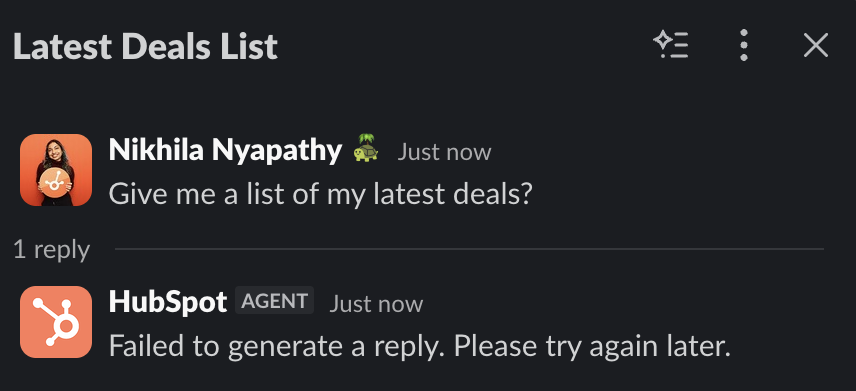
The Breeze team’s PM spoke with customers about using Breeze in Slack as it was. Most of the pain points were about answer quality: Slack wasn’t delivering the rich answers people got on the web, which limited how useful they found it. For example, instead of showing record snapshots and histories in a format people could scan, Breeze in Slack returned a wall of text. Other pain points were around completing flows in Slack, for example with artifacts, invoking agents and so on.
How might we translate Breeze Assistant's capabilities into Slack's interaction model while maintaining a cohesive experience across platforms?
Prompt exploration
I started with the prompts sales teams (reps and managers alike) actually ask, like meeting prep, deals with no next step, and pipeline risk, and ran each in Breeze on web and in Slack. AI doesn’t answer the same way twice, so I ran each prompt multiple times and designed for the patterns that kept showing up, not for any single response.
Below is a snapshot of some of the prompts I explored, with notes comparing the experience on web and in Slack and patterns I found across prompts.
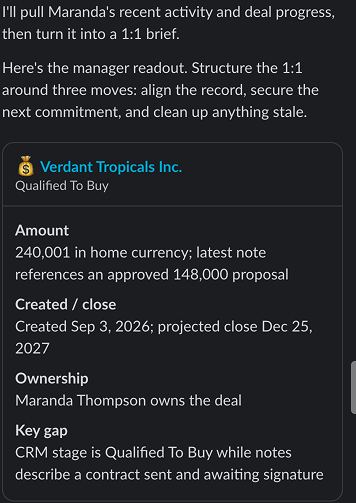
"Prep me for my 1:1 with Maranda Thompson based on her activity and deal progress"
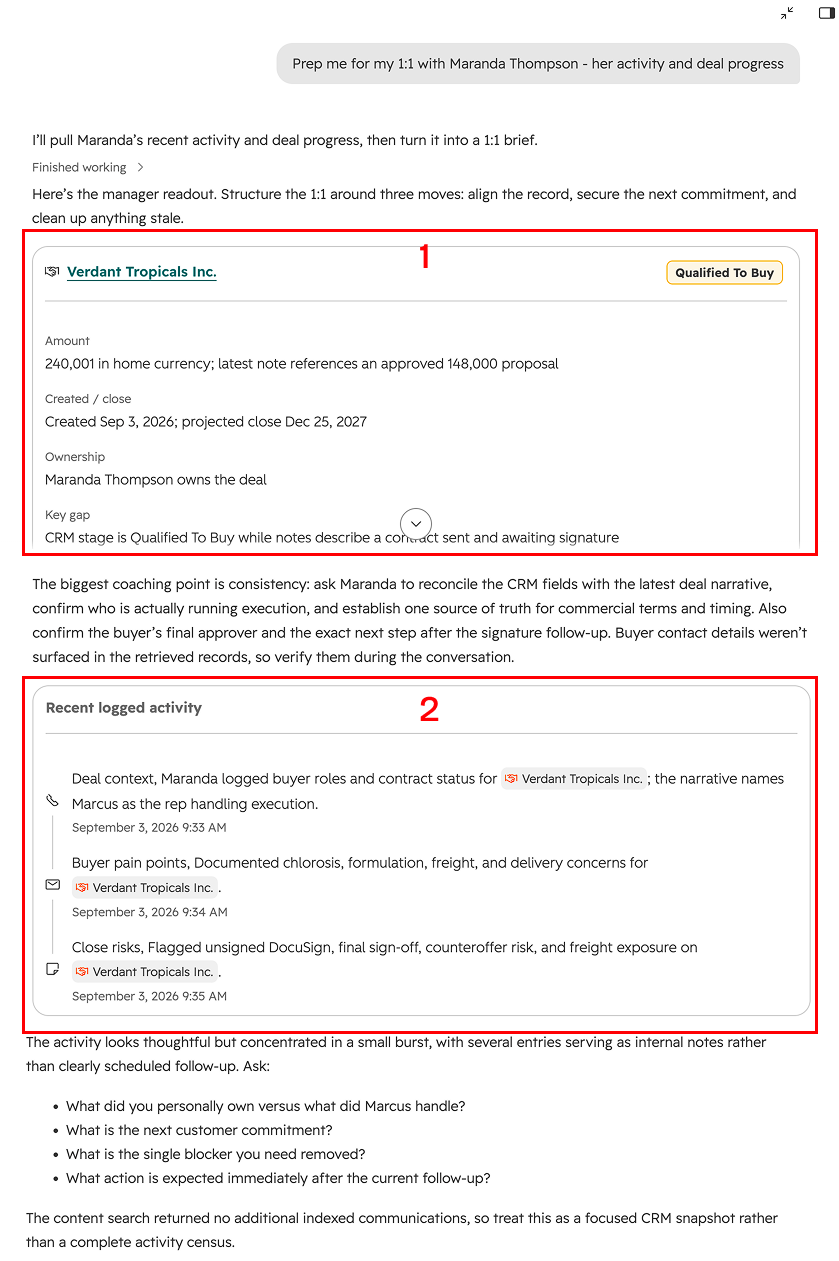
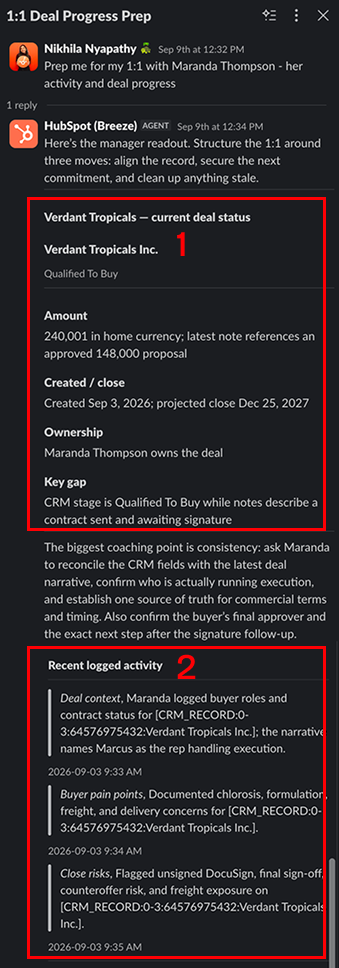
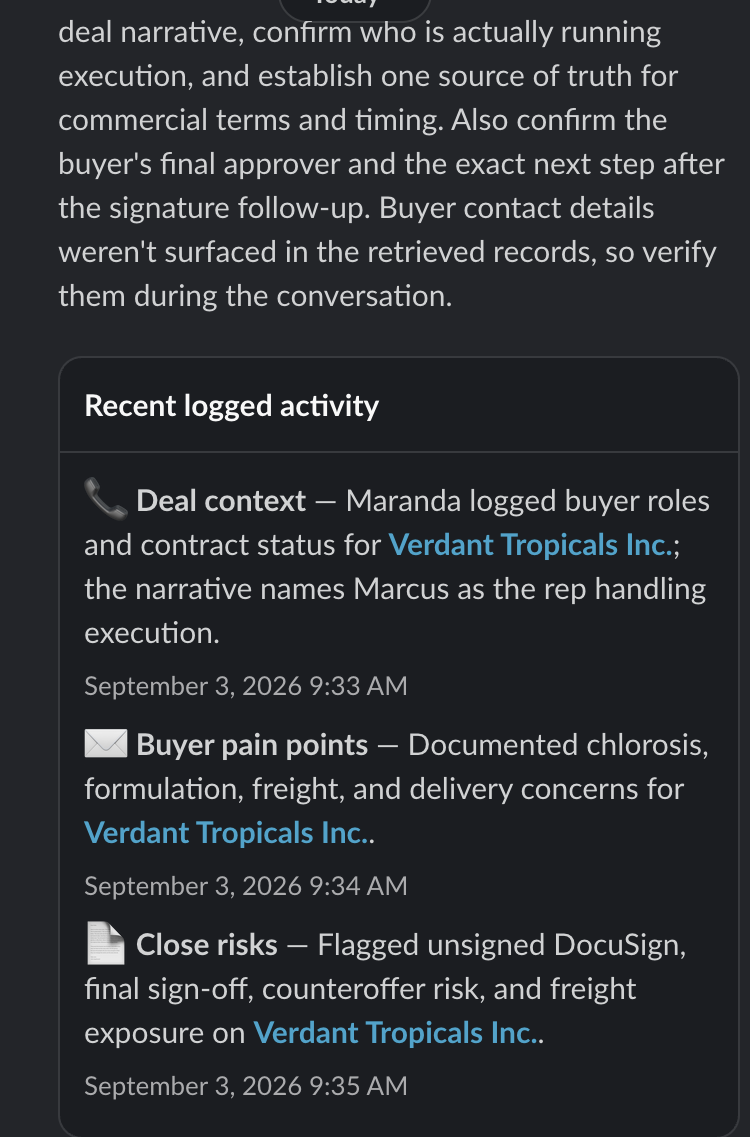
1. On web, the deal details are presented as a card with a linked name, labeled fields and show the stage as a badge to draw the user's attention. In Slack it became a column of bold label/value rows, and the stage (“Qualified To Buy”) is plain gray text, so the one thing a user scans for first no longer stands out.
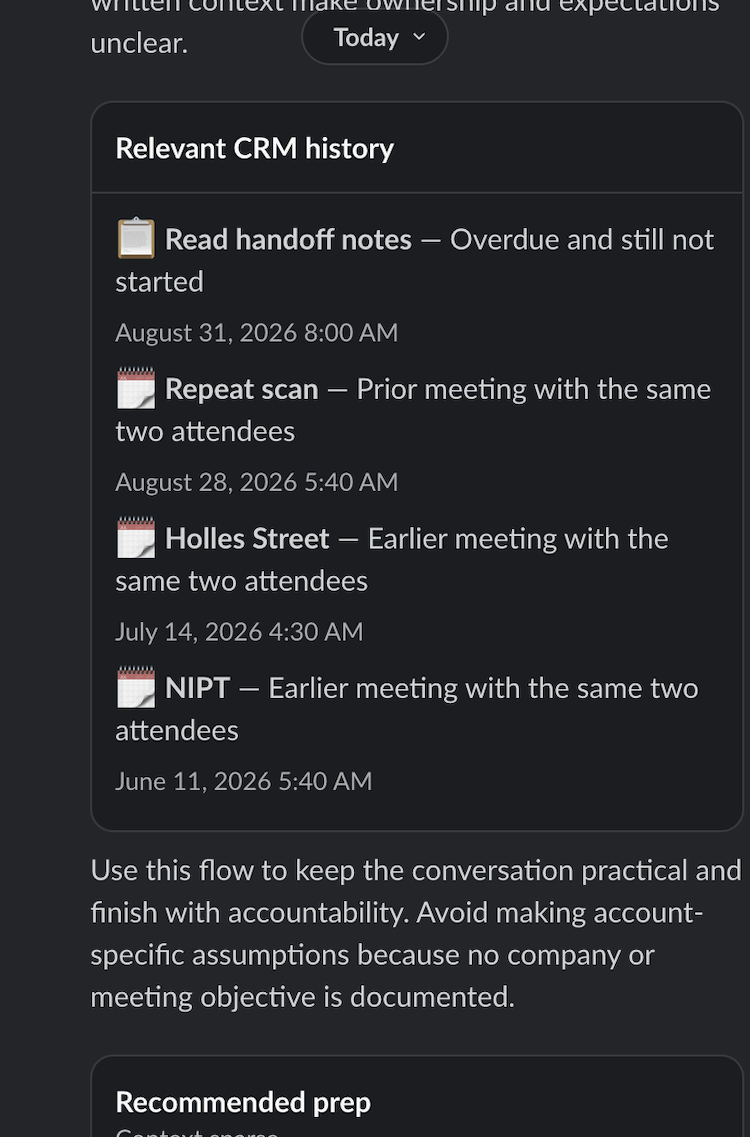
2. Each list of recent activity has an activity icon, a clickable record name, and a readable date on web. In Slack the names come through as raw [CRM_RECORD:…] tokens, the icons are gone, and the timestamps are raw.
"Where's the revenue risk in my pipeline this quarter?"
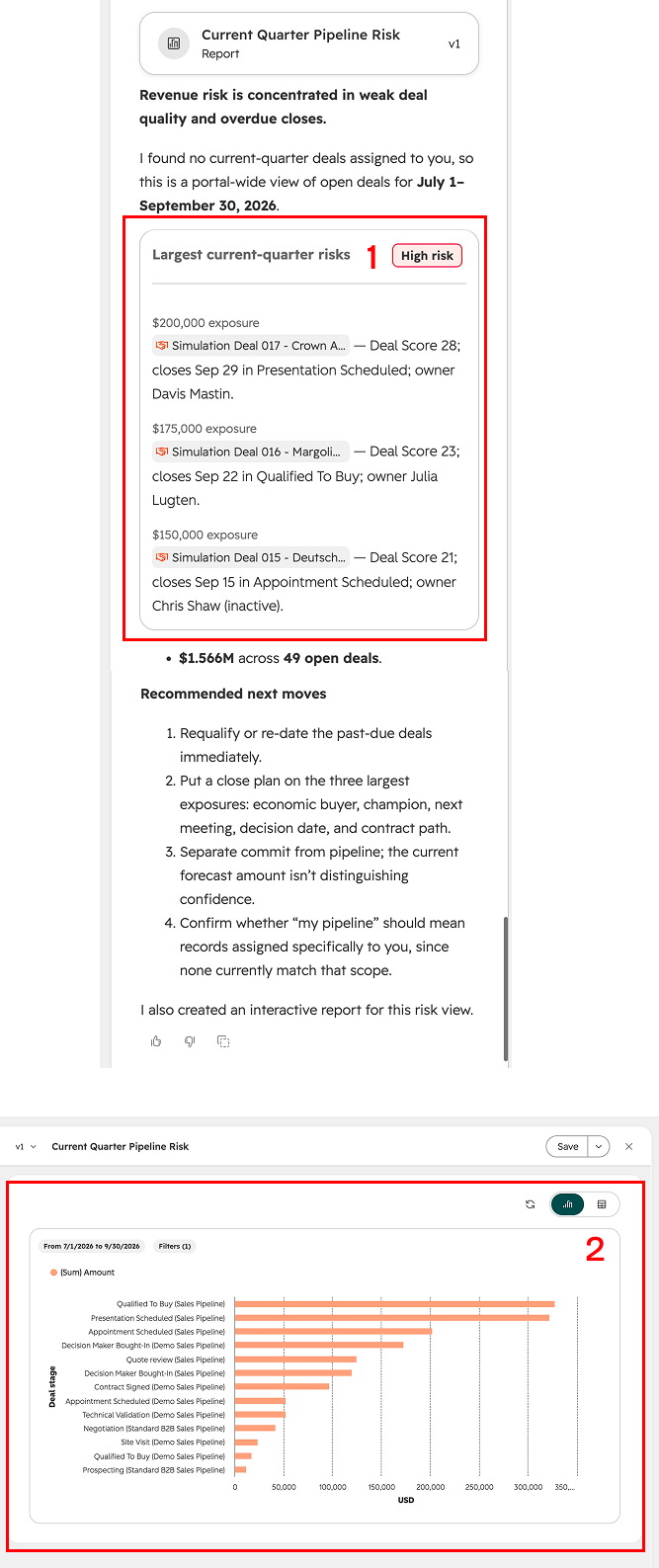
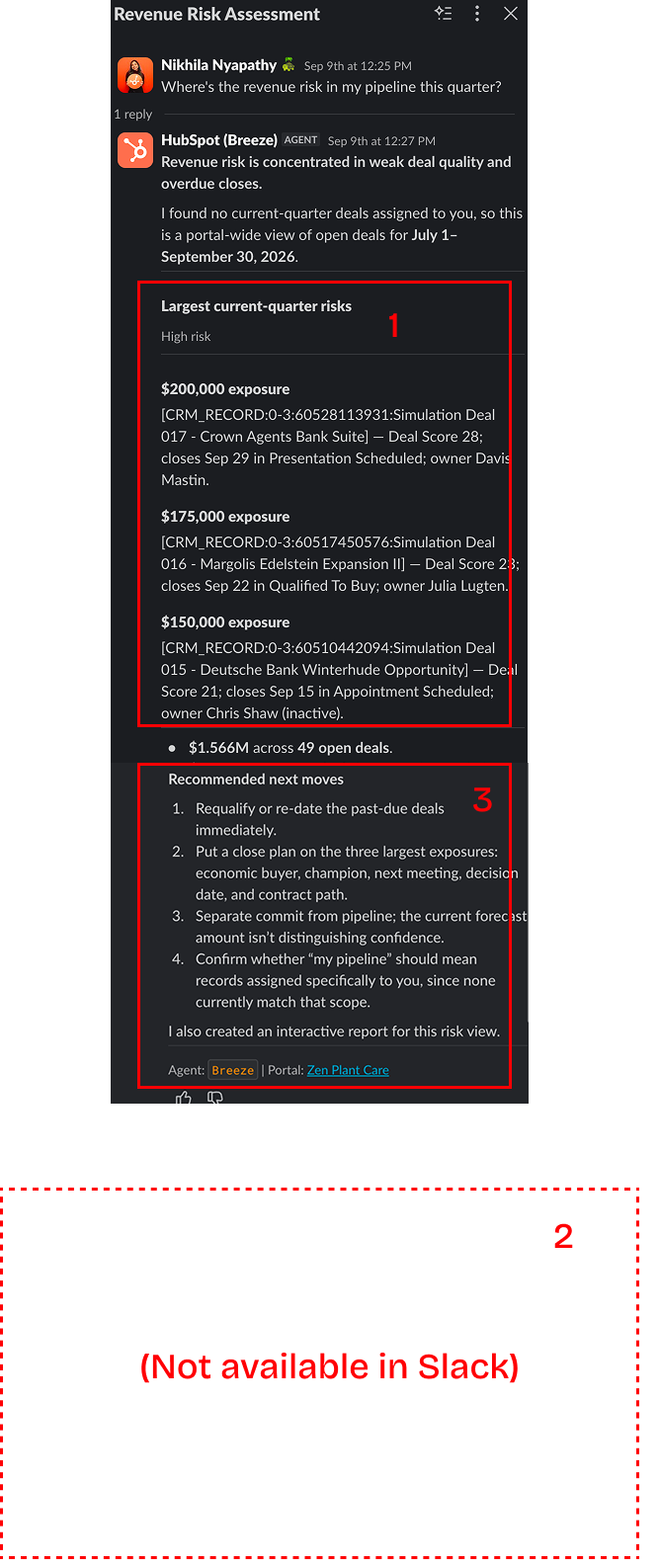
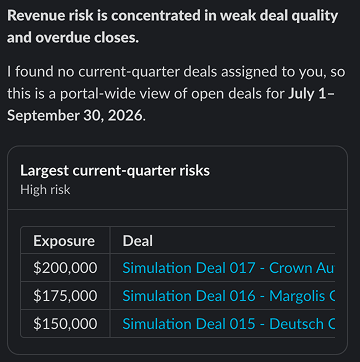
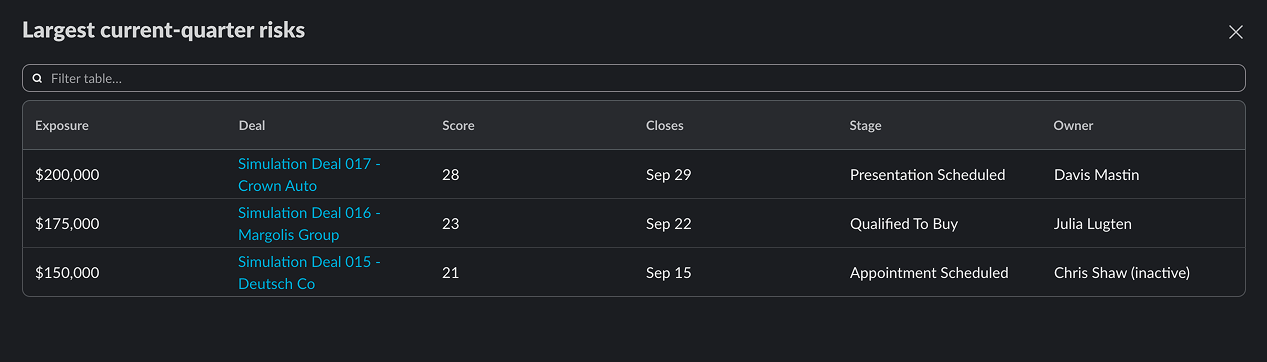
1. The list of deals is shown as a card on web. On Slack it is unformatted.
2. Reports that could be viewed on web were inaccessible on Slack.
3. While the next steps stand out on web due to the overall structure and flow of Breeze's answer, on Slack they get lost within the text.
"Show me my hottest leads this week"
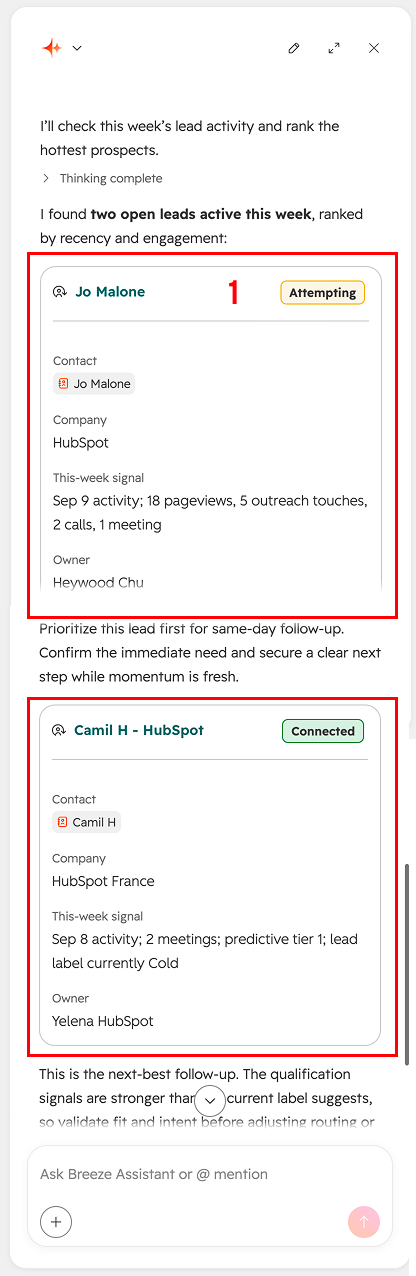
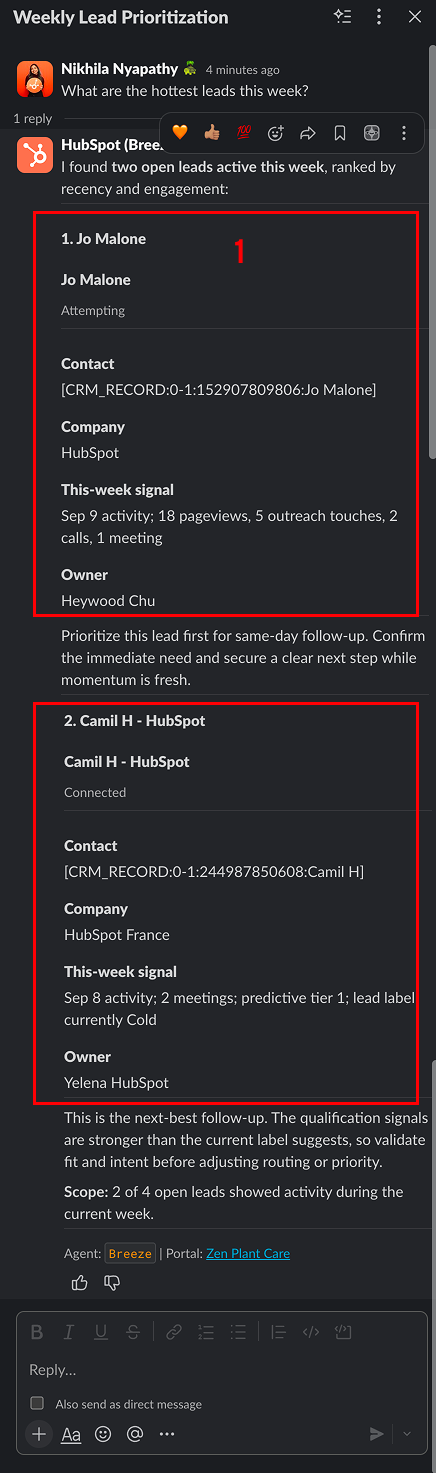
1. On web, the record details are presented as a card with a linked name, labeled fields and show the stage as a badge to draw the user's attention. In Slack it became a column of bold label/value rows, and the stage is plain gray text, so the one thing a user scans for first no longer stands out.
"Build me a list of accounts with no activity in 90 days"
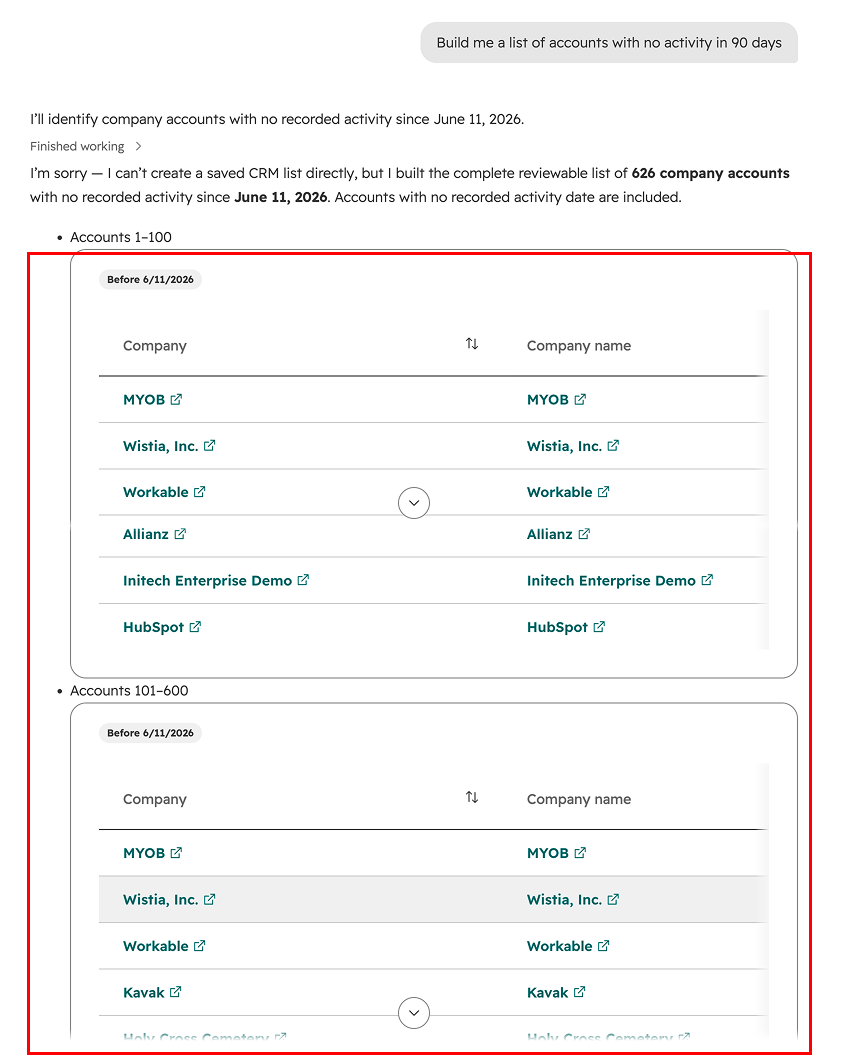
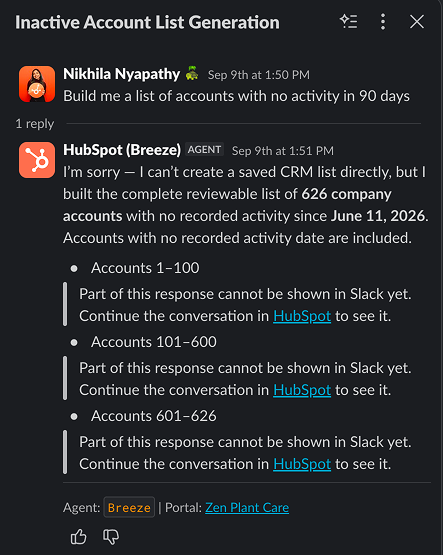
Lists of records are shown as a report on web, whereas any lists do not render in Slack.
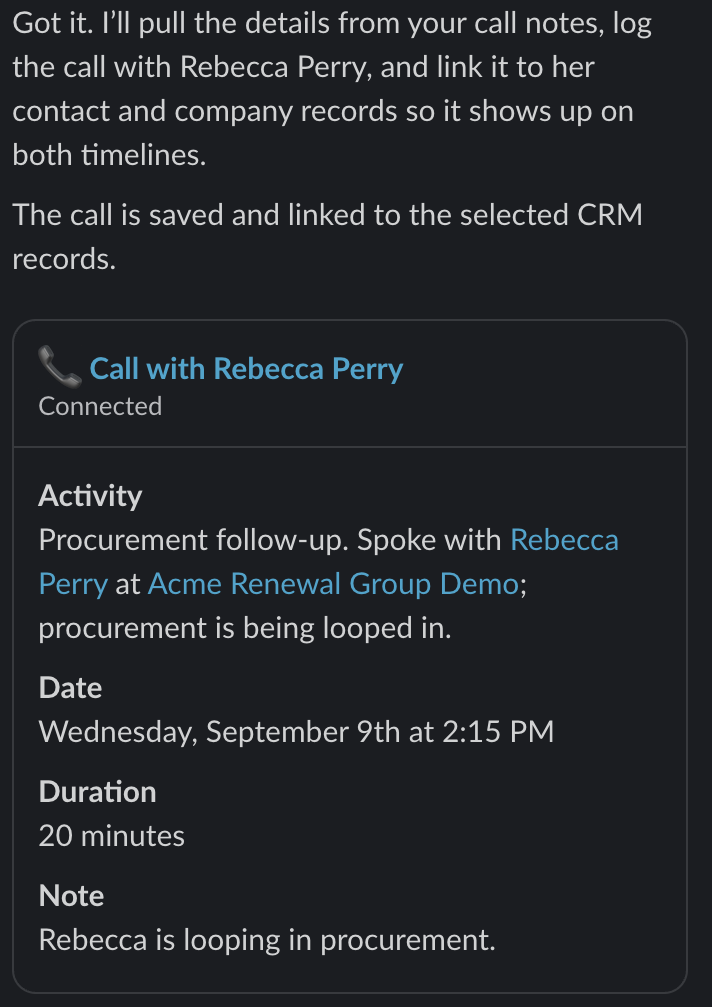
"Log my call with Rebecca at Acme - she's looping in procurement"
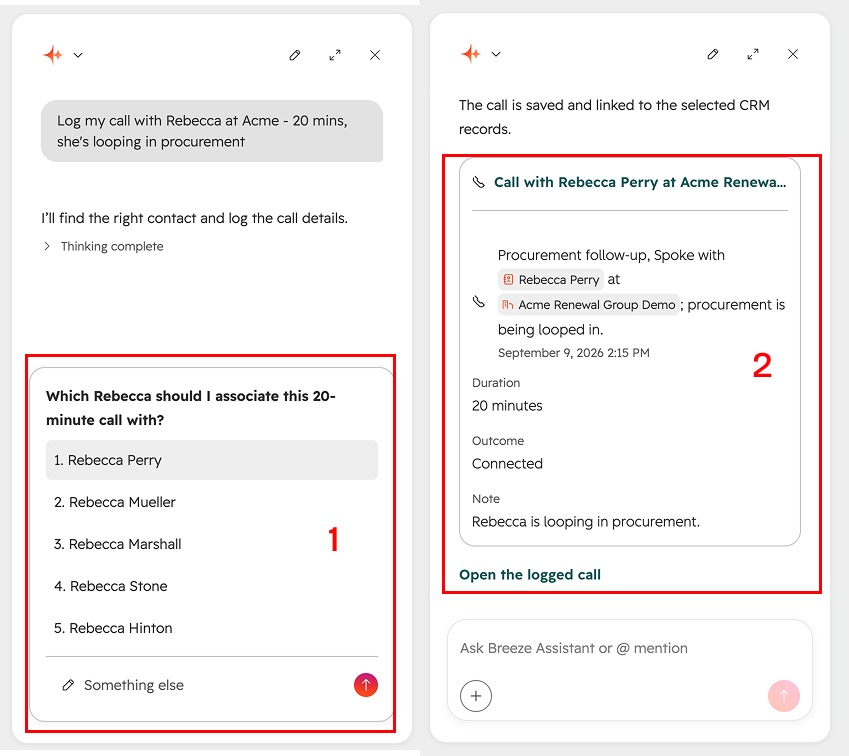
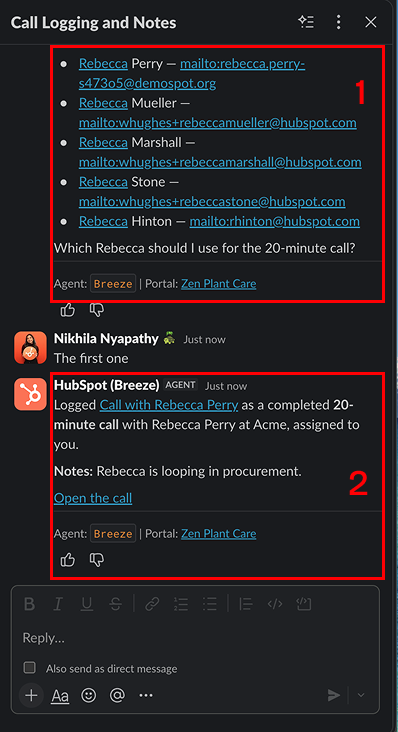
1. Clarifying questions asked by Breeze (Ask User Question) showed an interactive experience on web, but in Slack the user had to rely on the conversation - while this doesn't prevent them from proceeding it degrades the experience, especially compared to emerging design patterns for LLMs.
2. Any activity that is created is formatted in a card on web, and reads as a block of text on Slack.
"Move the Acme deal to negotiation stage, close date is end of the month"
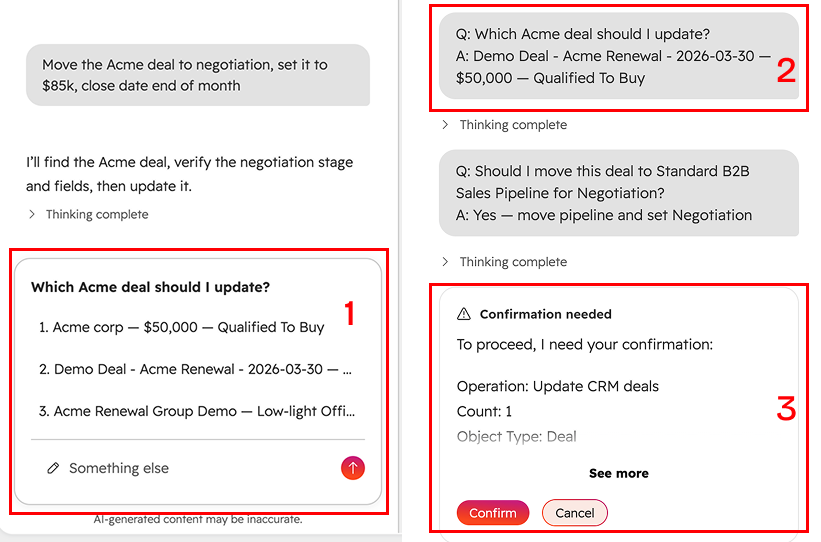
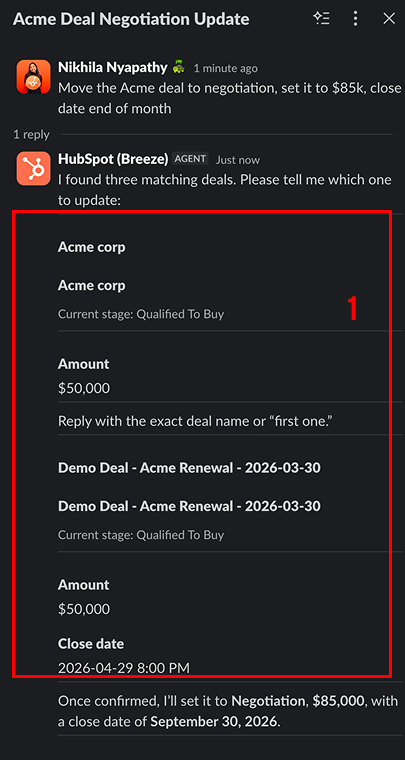
1. The same clarifying-question gap has a sharper cost here: the user shouldn’t have to type the exact deal name or say “the first one.” One tap should do it.
2. Any answers given by the user for an Ask-User-Question (AUQ) were logged as a Q&A in the conversation on web, whereas on Slack the user didn't have the trace of what they submitted unless they read through the conversation again.
3. Human-in-the-loop: an agent should pause and ask for confirmation before changing a record. On web it does. In Slack it was missing.
Component & interaction design
I proposed four components to address the patterns I found, each defined by when it applies and not by how it looks.
Record / activity card
Any record or completed activity is shown as a card of property - value pairs, with the most important detail highlighted in the subtext and the record or activity name linking to the actual record in HubSpot. It’s a base that variations build on, like using the same card to bring attention to recommendations shown by Breeze.
Interaction history
Any list of past interactions or related activity is shown as a card of dated items, each with an icon, a bold title, a one-line description and a timestamp, so it can be scanned at a glance and linked back to the record in HubSpot.
Data tables and lists
Any list of records is shown as a data table, with the most important properties as columns and each record name linking to the actual record in HubSpot. On web, the same kind of list appeared as plain text, a report artifact or a card, depending on the response, so I proposed one consistent table for Slack.
Ask User Question flow
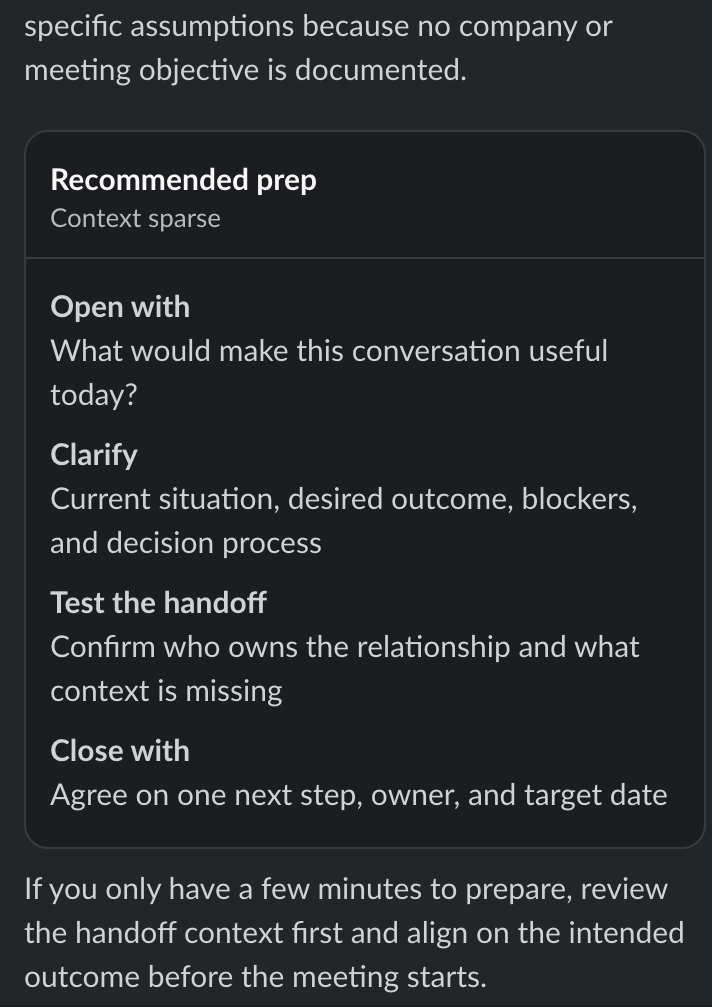
When Breeze needs more information to continue, it asks in a card. The user can pick an option or just type an answer, and the card then becomes a record of the question and the answer. No answer is required, matching Breeze on web, so a user can skip any question and Breeze continues with what it has.


In my testing on web, Breeze asked follow-up questions one at a time, and I couldn’t get it to ask several together. I did see other AI assistants, like Claude, present multiple questions as a carousel, with one question on screen at a time. Slack doesn’t support that pattern for inputs, so I designed the card to hold several questions at once, with a single Submit. The compromise is the message box. With several questions on screen, it’s unclear which one a typed answer belongs to, so Breeze has to read the text in context and assign each comma-separated part to the question it fits. Anything left unanswered is skipped.


Cross-platform AI design challenges
Breeze Assistant generates rich, interactive content that users can iteratively refine, but these experiences don’t always translate into Slack’s Block Kit components. The challenge was determining which AI-generated artifacts could be meaningfully displayed and edited in Slack, and when to direct users to HubSpot for a richer experience, while preserving context, usability and cross-platform consistency.
Native artifacts (Code, markdown, CSV, TXT)
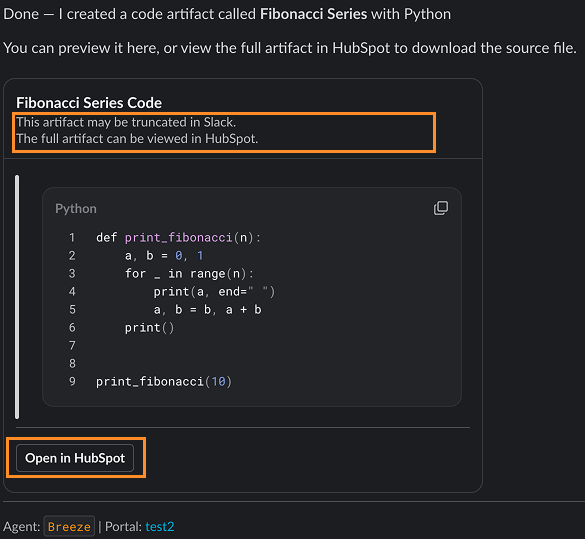
Simple artifacts, like code snippets, tables and markdown, display natively in Slack. Slack’s limits (usually on characters) mean anything longer is truncated, with a link to open the full artifact in HubSpot.
Richer artifacts (PPT, documents, reports)
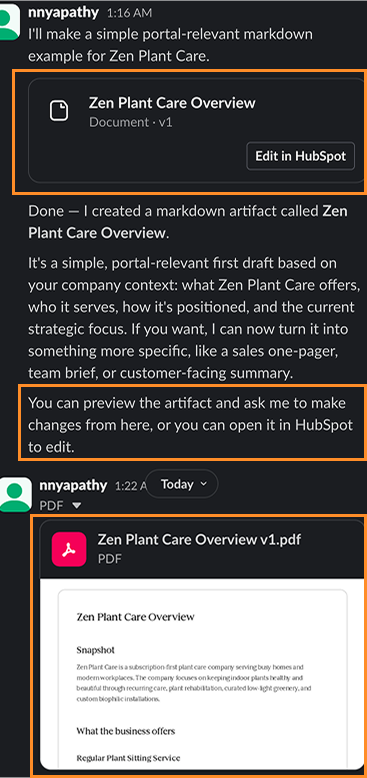
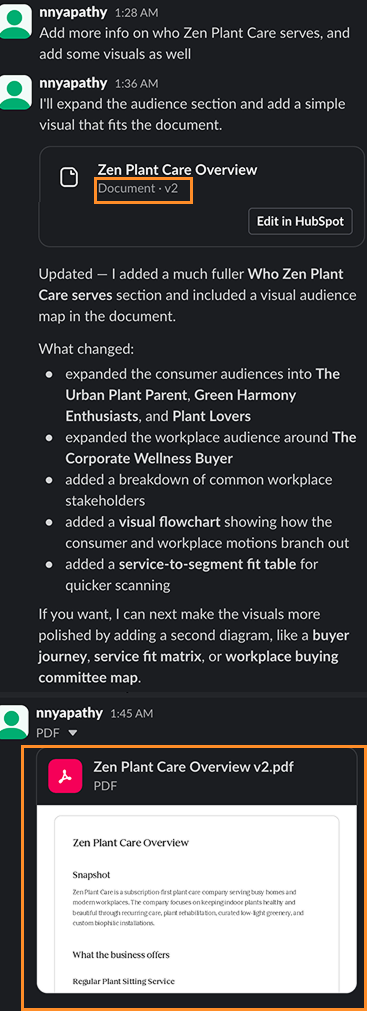
Richer artifacts, like documents, presentations and reports, get a link to edit them in HubSpot, followed by a second message with a static PDF snapshot, so reps can review them without leaving Slack.
The trade-off was noise. If a user keeps refining an artifact from Slack, every revision follows with the edit link and the latest snapshot. That adds messages, but I decided it was more useful than forcing people back to web just to see the latest version.
When a sales rep uses Breeze Assistant in HubSpot, the customer information returned is visible only to them. Bringing Breeze into Slack introduced a new privacy challenge: what happens when a user queries customer information in a shared channel where other members may not have permission to access that data in HubSpot? This raised important questions about how AI-generated responses should be displayed, who should be able to see them, and how to prevent sensitive customer information from being inadvertently exposed.
An example: Scheduled prompts
Breeze on web lets users schedule prompts that run at a set time. Bringing that to Slack started as a small idea: let users create a scheduled prompt in natural language from Breeze in Slack. Even at that scope, it opened up harder questions:
It also raised questions about who can create prompts, where they’re managed (in the Slack app, in HubSpot's Slack settings page, or HubSpot notification pages) and general visibility across these surfaces so that users don't hit a dead end.


What I proposed
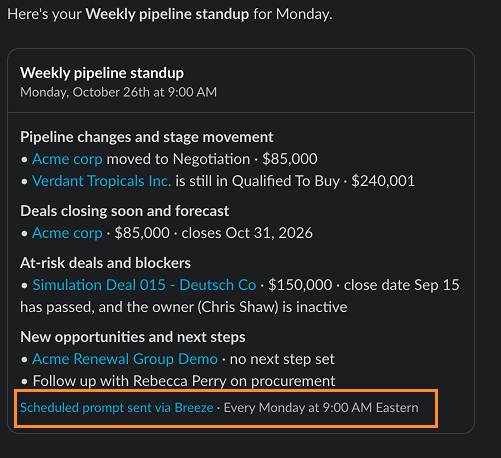
I argued that trust and privacy should lead: be transparent about where automated information comes from, and give customers an easy way to opt out. To start, I suggested limiting scope to creating prompts through natural language from Breeze in Slack, with every delivered message carrying a footer that says where it came from (“Scheduled prompt sent via Breeze”) and links to the saved prompt on web where it can be managed, and also linking to Breeze on web from the Slack settings and notification pages in HubSpot, so users don’t hit a dead end. I proposed measuring it through qualitative customer feedback and clicks on the footer link.
I left before this was finalized, so this reflects my proposal, not what shipped.
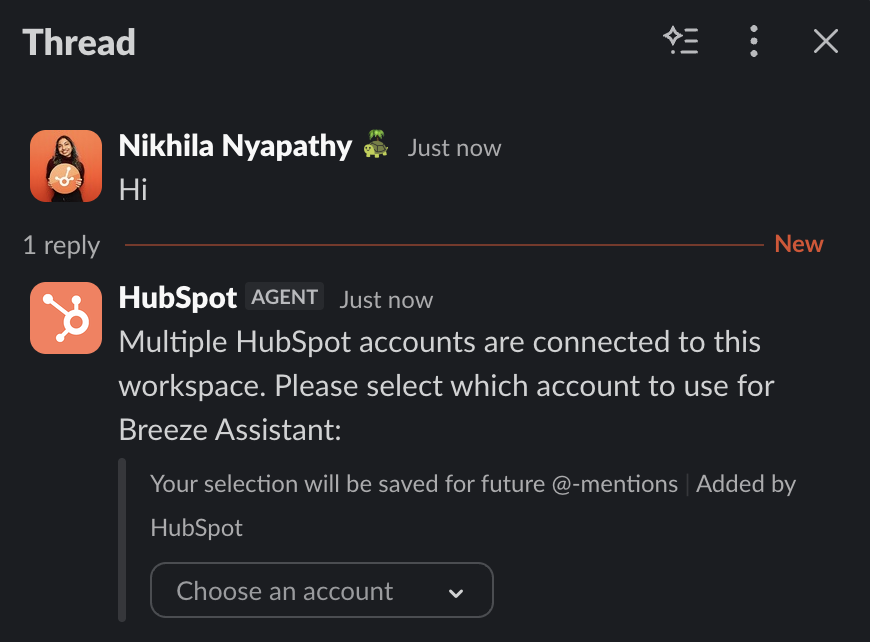
Unlike HubSpot's web experience, Slack is a collaborative environment where messages and notifications compete for attention. The challenge was maintaining a healthy signal-to-noise ratio by determining when Breeze interactions should be visible to an entire channel, contained within threads, or shown privately - without overwhelming users or disrupting existing conversations.
I treated this as a principle, not a single decision. Whenever the team had to choose where a Breeze message should land (the channel, a thread, a DM, or an ephemeral message only the asker sees), I asked: who needs to see this, and what does it cost everyone else if they do?
Where I’d push further: audit every Breeze message type and decide its home deliberately.
Proposed validation
I left before these designs could be tested with users, so this is what I’d measure first.
Key takeaways for designing cross-platform AI features

Got a role in mind? Reach out - let's create real customer value together.
