

Designing a demo mode for the HubSpot Shopify app to showcase the value of the integration to new and returning users
Customer problem
Users of the HubSpot Shopify integration were unaware of all the available features, and confused after installing the integration as they were unsure about what to do with it.
Business problem
Activation of integration features is directly correlated to customer retention. The team was in the process of migrating customers to this new version of the Shopify app from the legacy version, so that made this the perfect opportunity to address discoverability and onboarding. In addition, this aligned with the high priority goal for the product line - to build, deepen, discover and activate integrations.
Solution
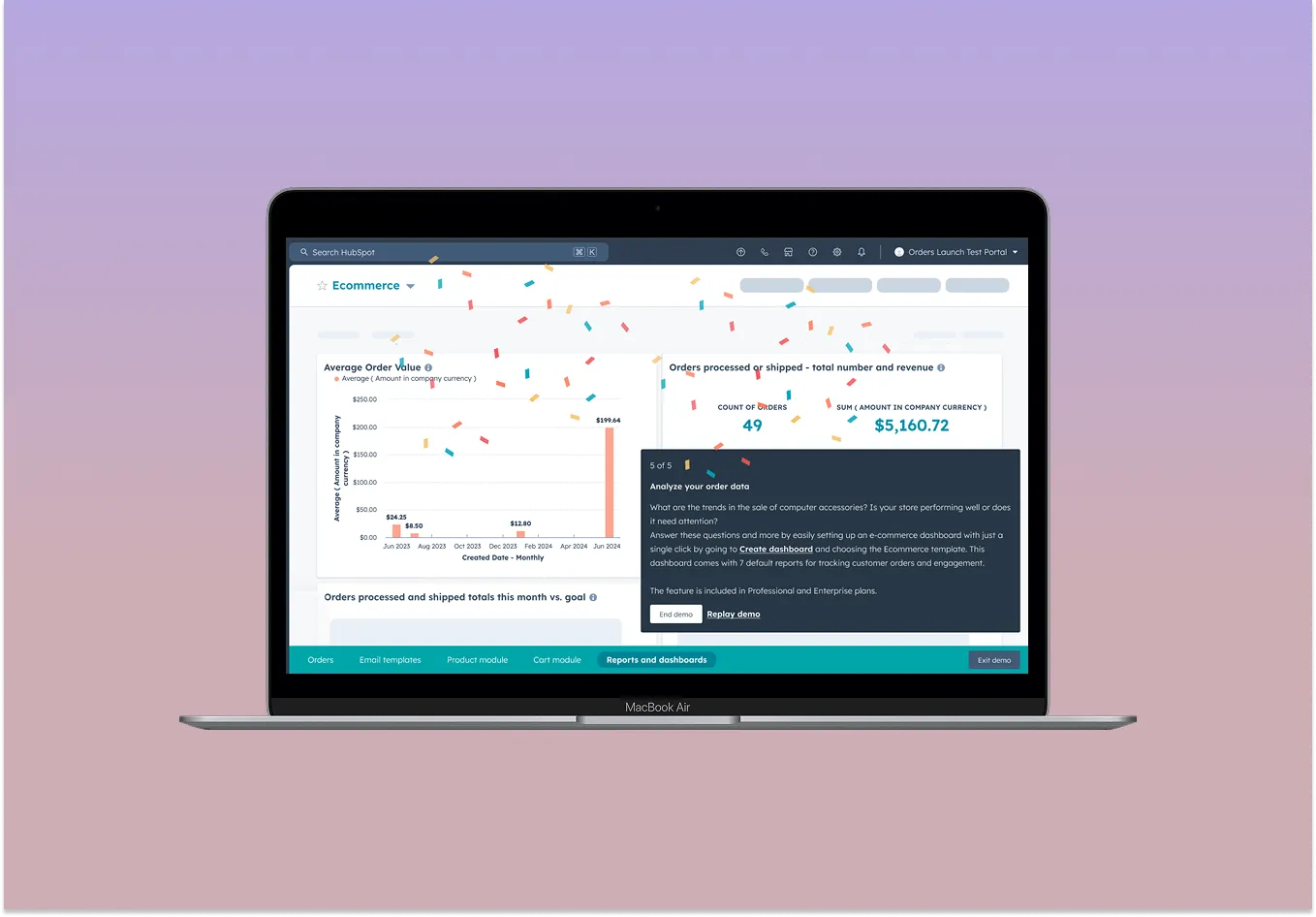
Leveraging the Product Led Growth framework, which included patterns from the Growth team to address activation, I built a demo for the Shopify integration as a quick way for customers to understand the value they could unlock.
Current installation flow
To understand the experience of a user installing the Shopify app for the first time, I documented the installation journey.
The current experience fell short in that it provided the user little context around the features of the app after installation (only the app listing page had feature information, pre-install). The feature discovery tab in the settings page had cards specifying the features but it was a disjointed experience that had low volume of clicks.
What I wanted to retain from the current experience, was the easy way to enter the object syncing wizard, which was a huge part of the app (to be able to sync Shopify objects to HubSpot objects). The user can access this from the settings at any time, but being directed to the wizard upon install was key to getting the object syncing up and running.
Customer research
Based on prior customer research (done by the team's UX researcher), it was clear that users (especially newer ones) were unsure of all the available integration features and felt they needed an expert for proper use.
Professional & Enterprise HubSpot portals with Shopify had not set up workflows, a key feature of the integration
had discovered or used a feature at least once, out of 11.7K Shopify integrated portals (paid & free).
was how long most portals took from installation to discovering integration features (closer to 60 days for marketing emails).
These features needed to be surfaced in a contextual manner for our e-commerce users to drive activation and adoption, by creating informative experiences and resources that help new users learn how to use the app.

"The only challenge I had is okay now that I have it installed what is it supposed to show? What am I supposed to learn out of this integration?"
VSB B2B Department Lead
Defining the user
Based on the customer feedback and business needs, the persona I was solving for was a user (typically marketers) who has just installed the Shopify integration and is newer to the HubSpot ecosystem.
"The only challenge I had is okay now that I have it installed what is it supposed to show? What am I supposed to learn out of this integration?"
VSB B2B Department Lead
Defining the goals
Applying the growth design components
HubSpot's Growth team had released a Product Led Growth (henceforth referred to as PLG) library with components and patterns for different use cases, along with guidelines on usage.
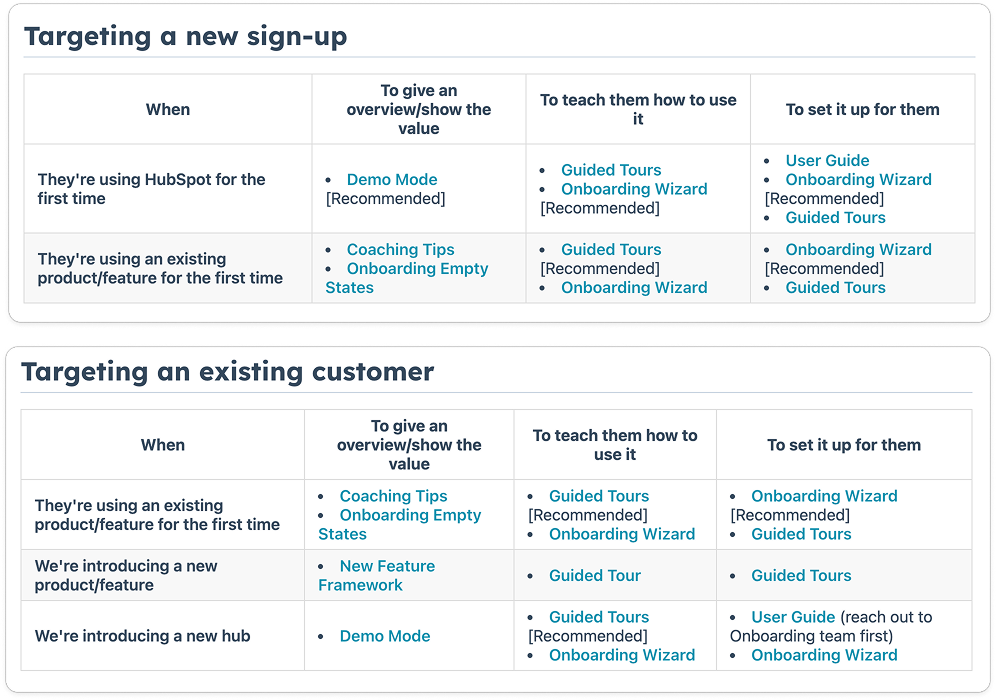
In this project I was primarily looking at new users of the integration, with the caveat that they might also be newer to HubSpot too. In terms of our goal, it was primarily to give them an overview / show them the value, but we also wanted to highlight how they can use it - so somewhere between the first two scenarios. I then weighed the pros and cons of all the different patterns as shown below.
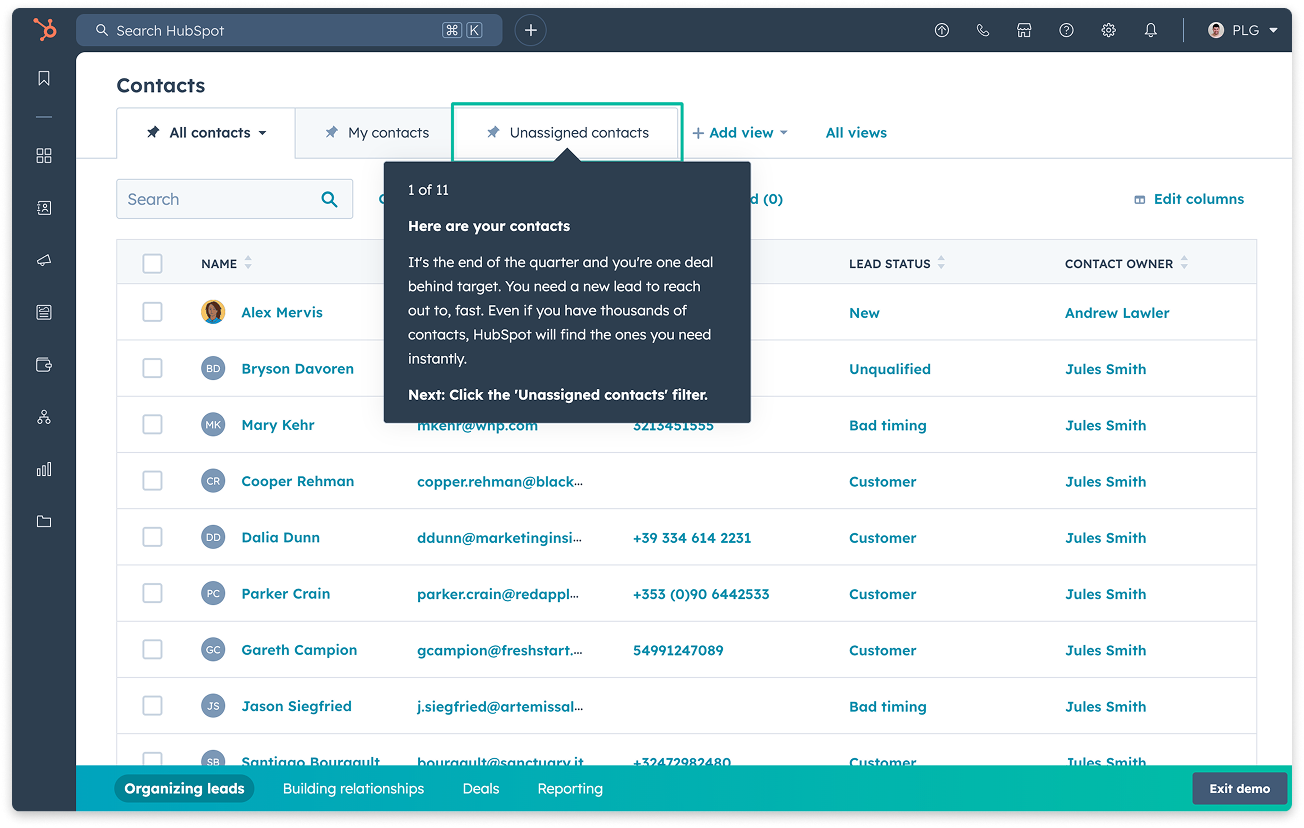
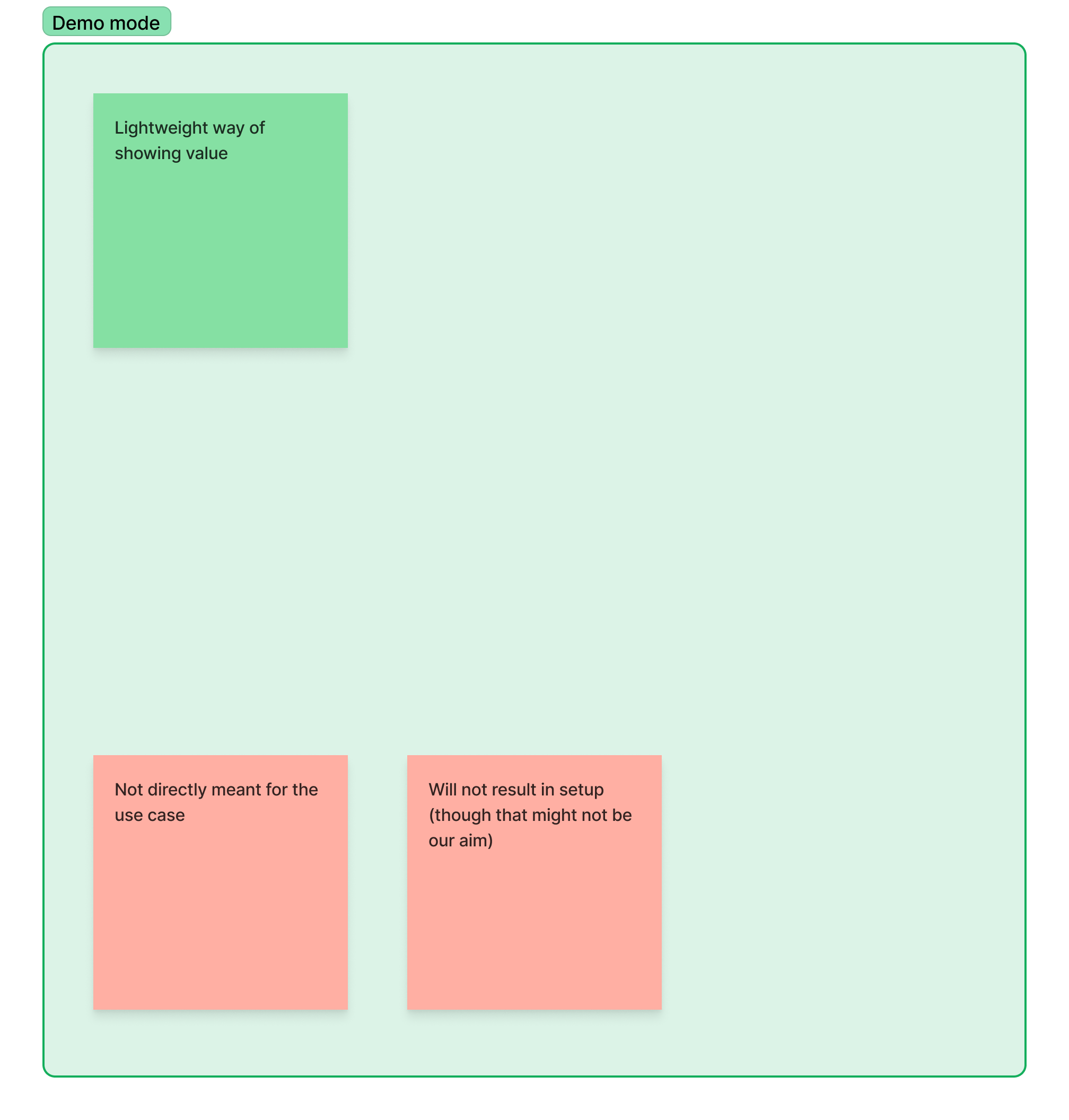
The Demo Mode pattern is an interactive demonstration of a Hub or tool’s value.
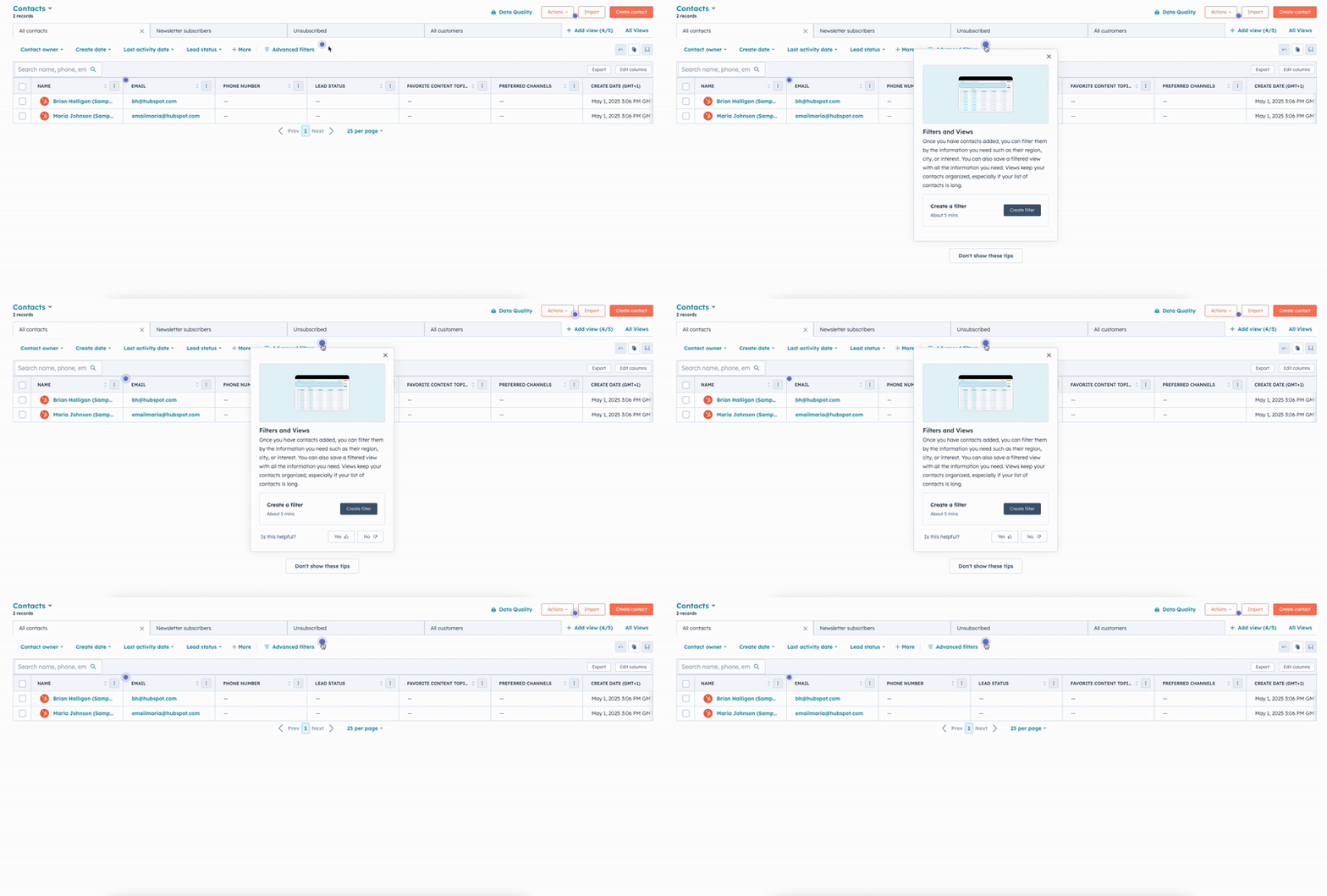
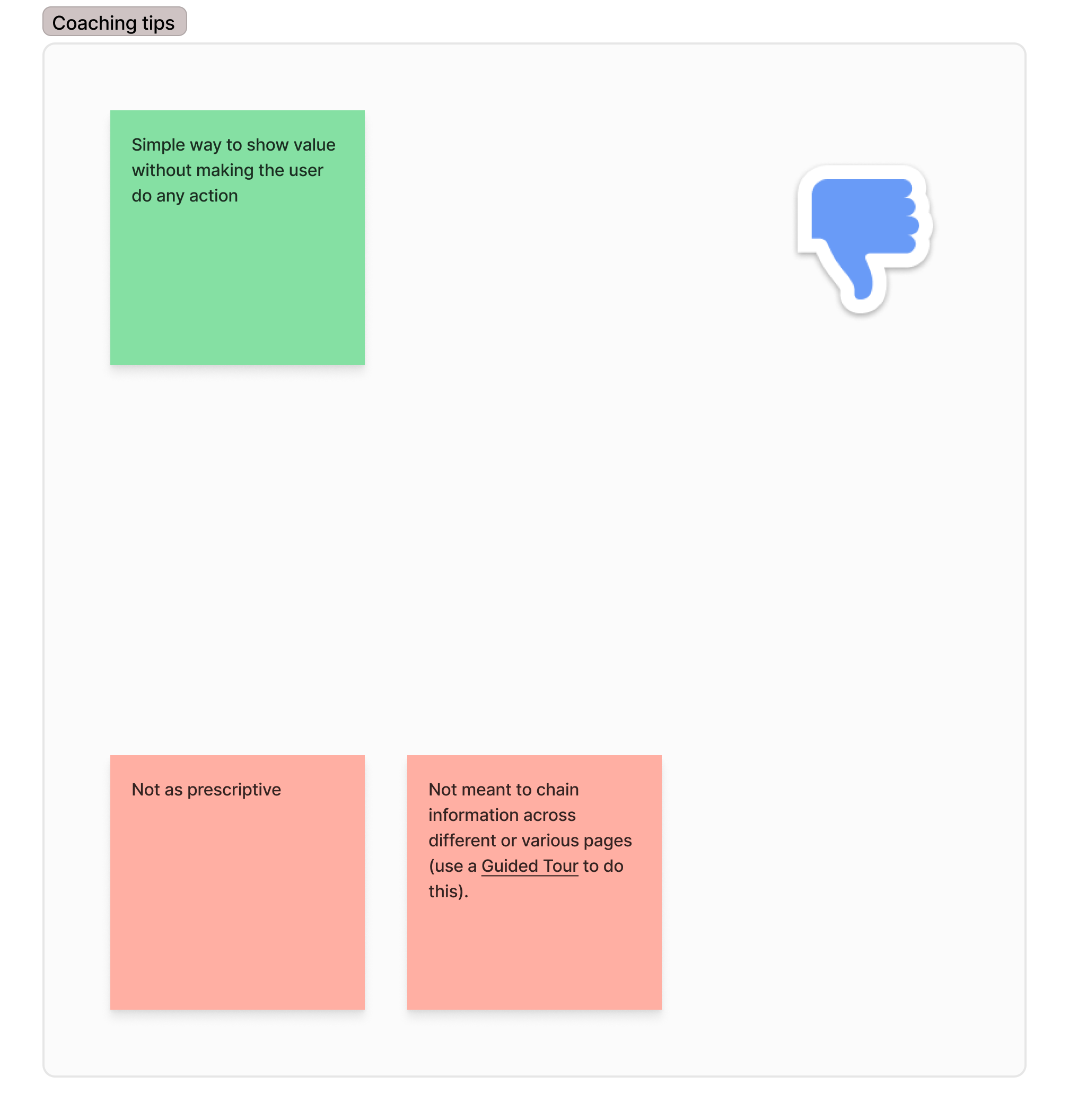
Coaching Tips are temporary messages used to educate new users about essential product features and terminology.
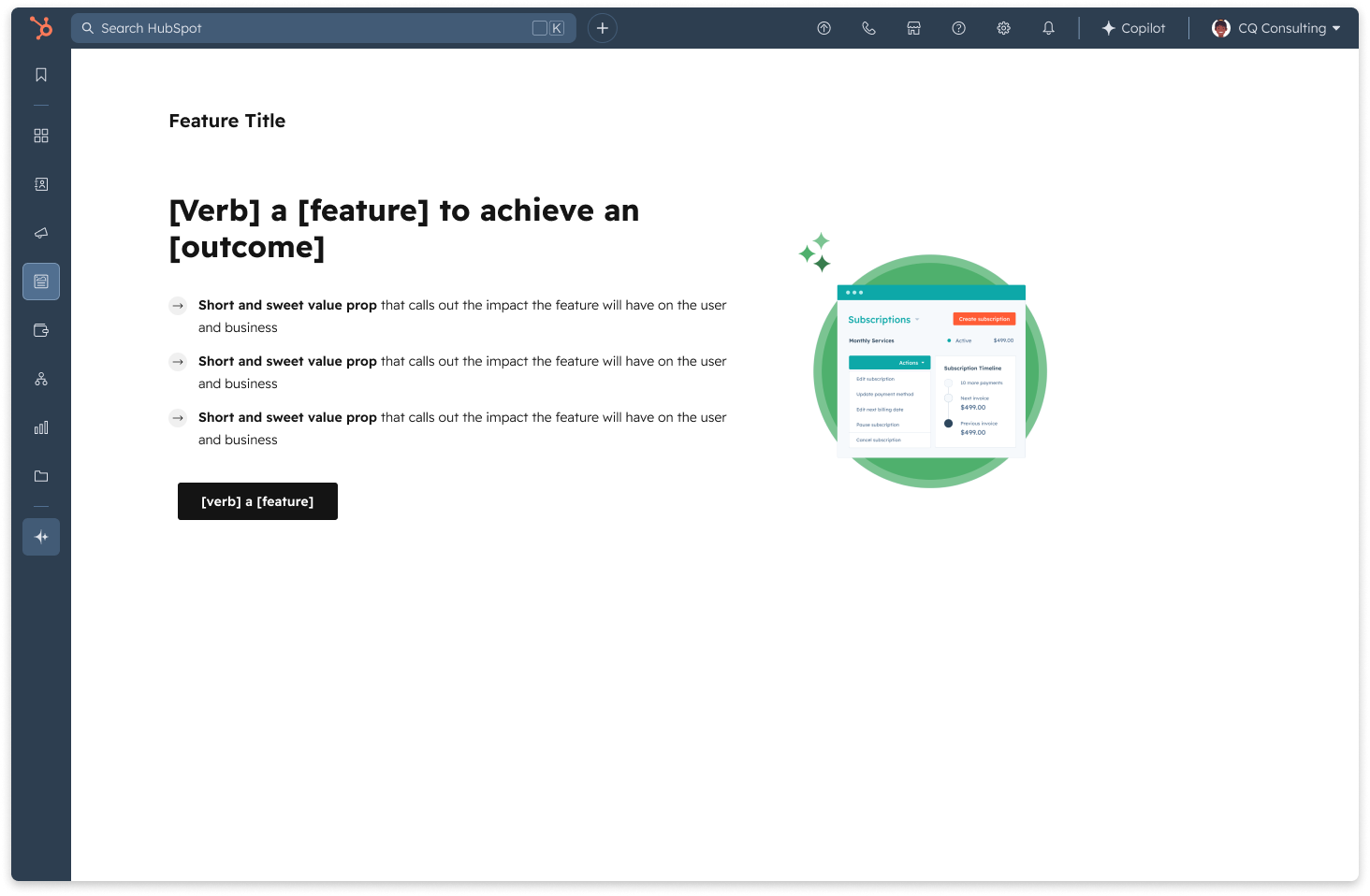
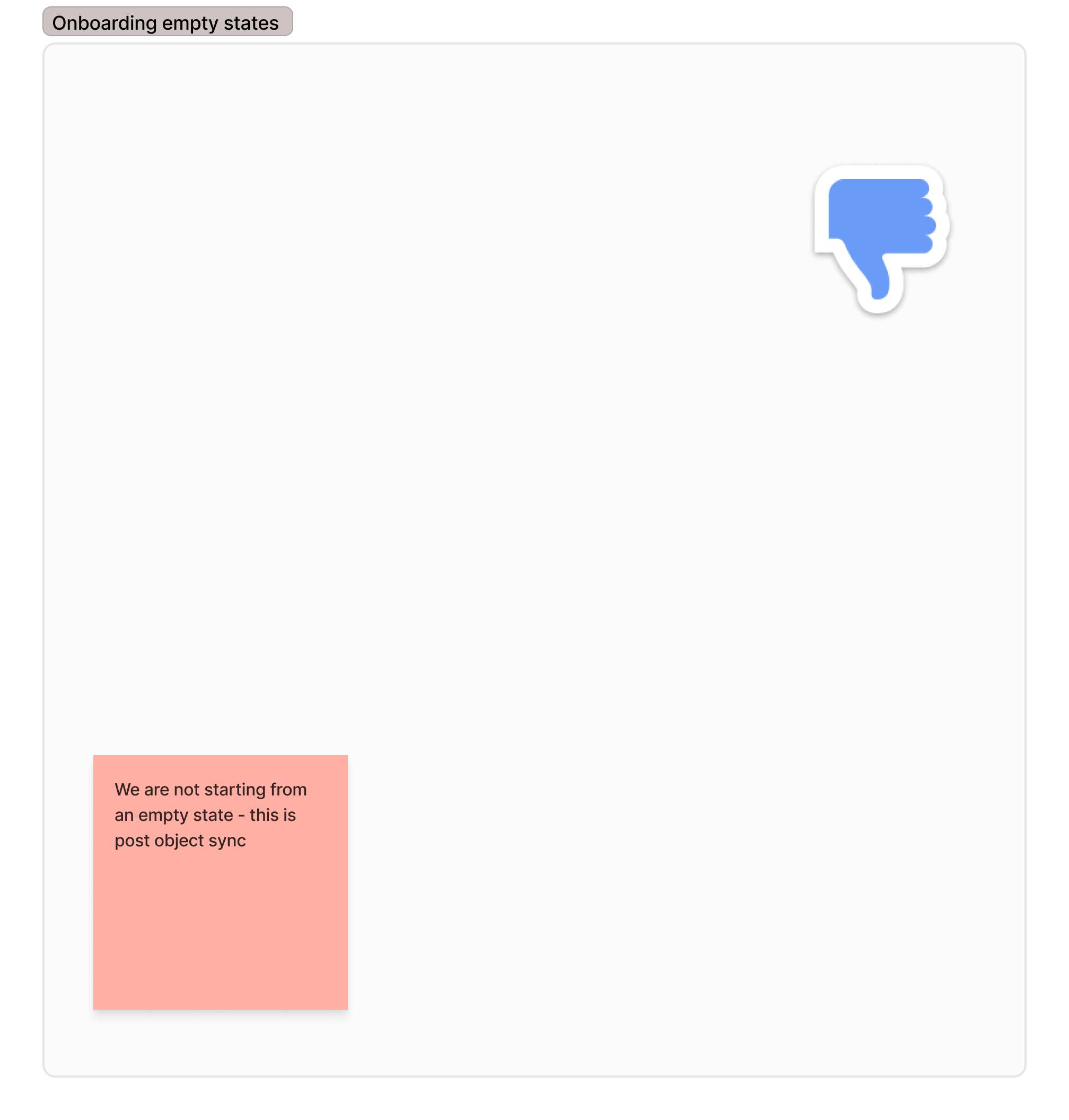
The Onboarding from Empty States pattern is used when there's no content/data to show users. In Onboarding, we use the space to highlight why the user might want to use the tool or feature and introduce the user to more onboarding if available for that tool or feature.
Guided Tours are in-product, learn-by-doing, walkthroughs that are designed to teach users how to complete tasks and discover the value of your product.
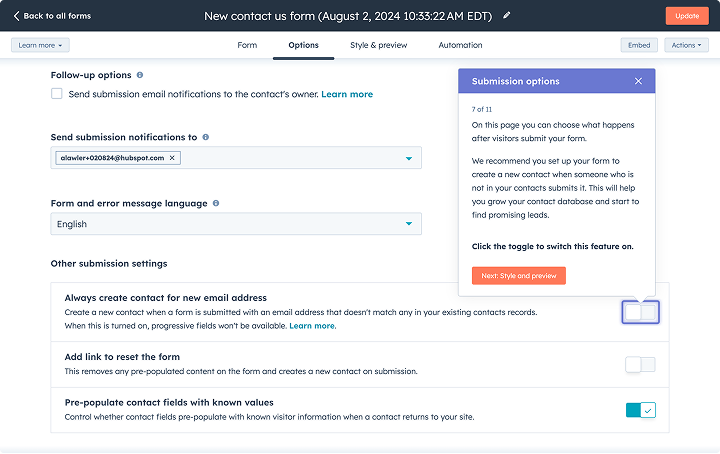
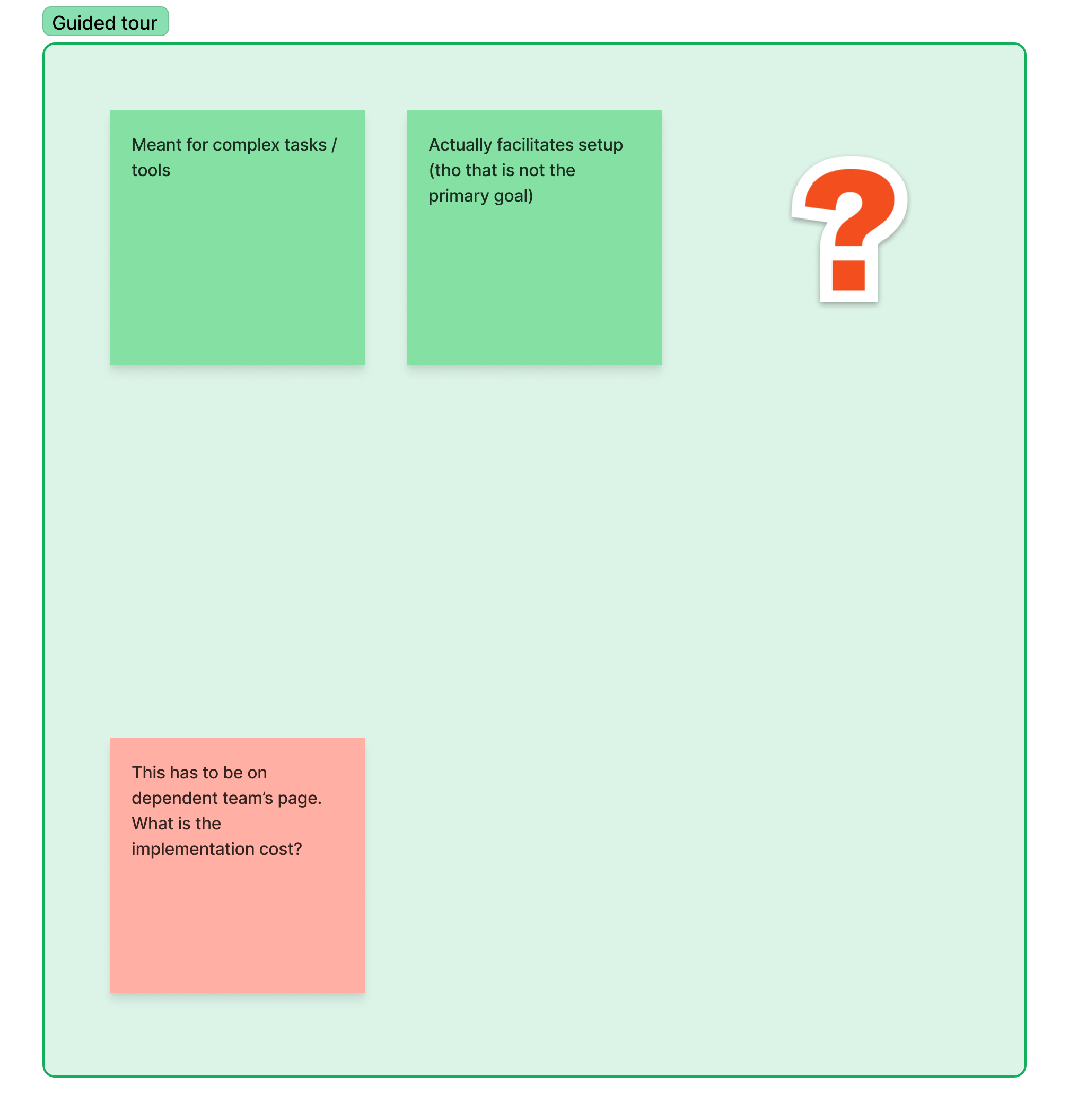
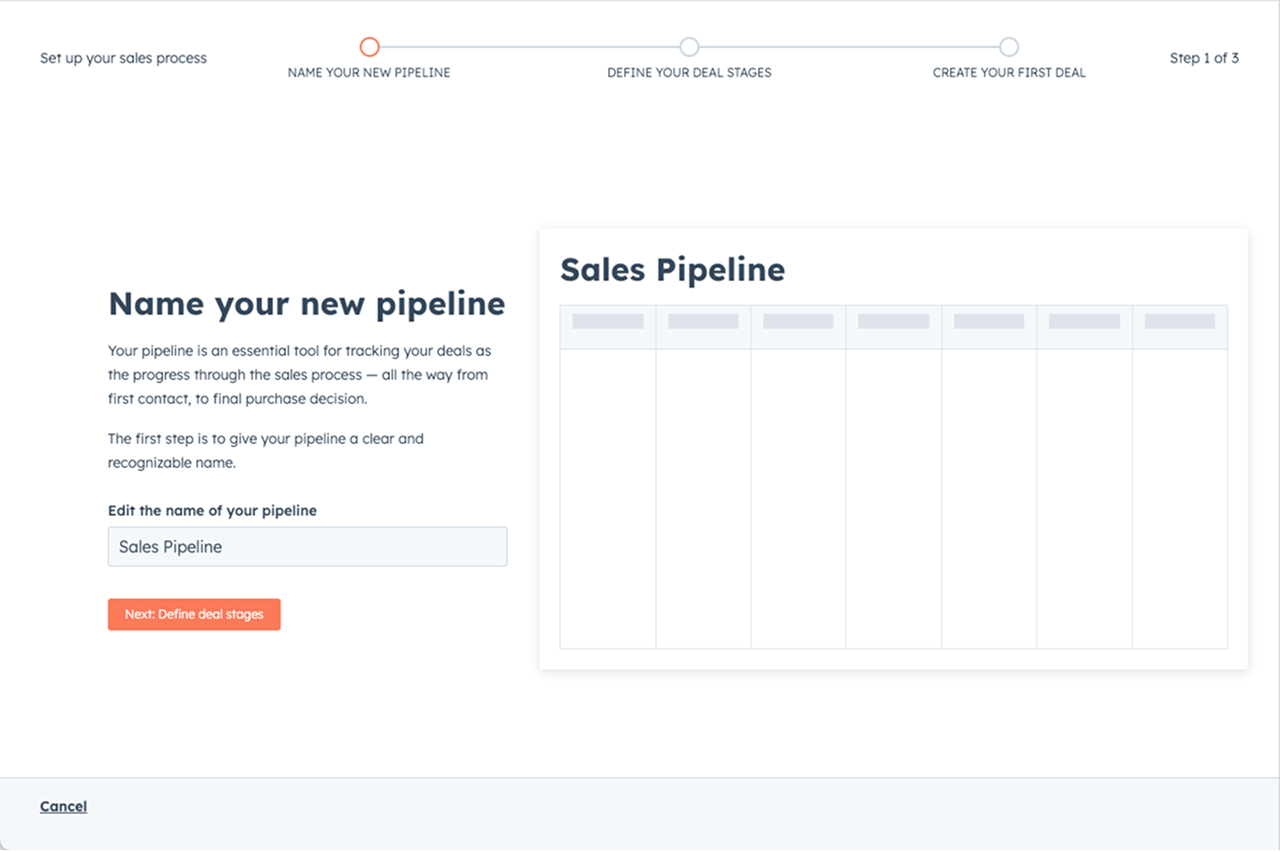
The Onboarding Wizard pattern is an interactive step-by-step experience with foundational setup steps to help users use a tool/implement a use case for the first time.
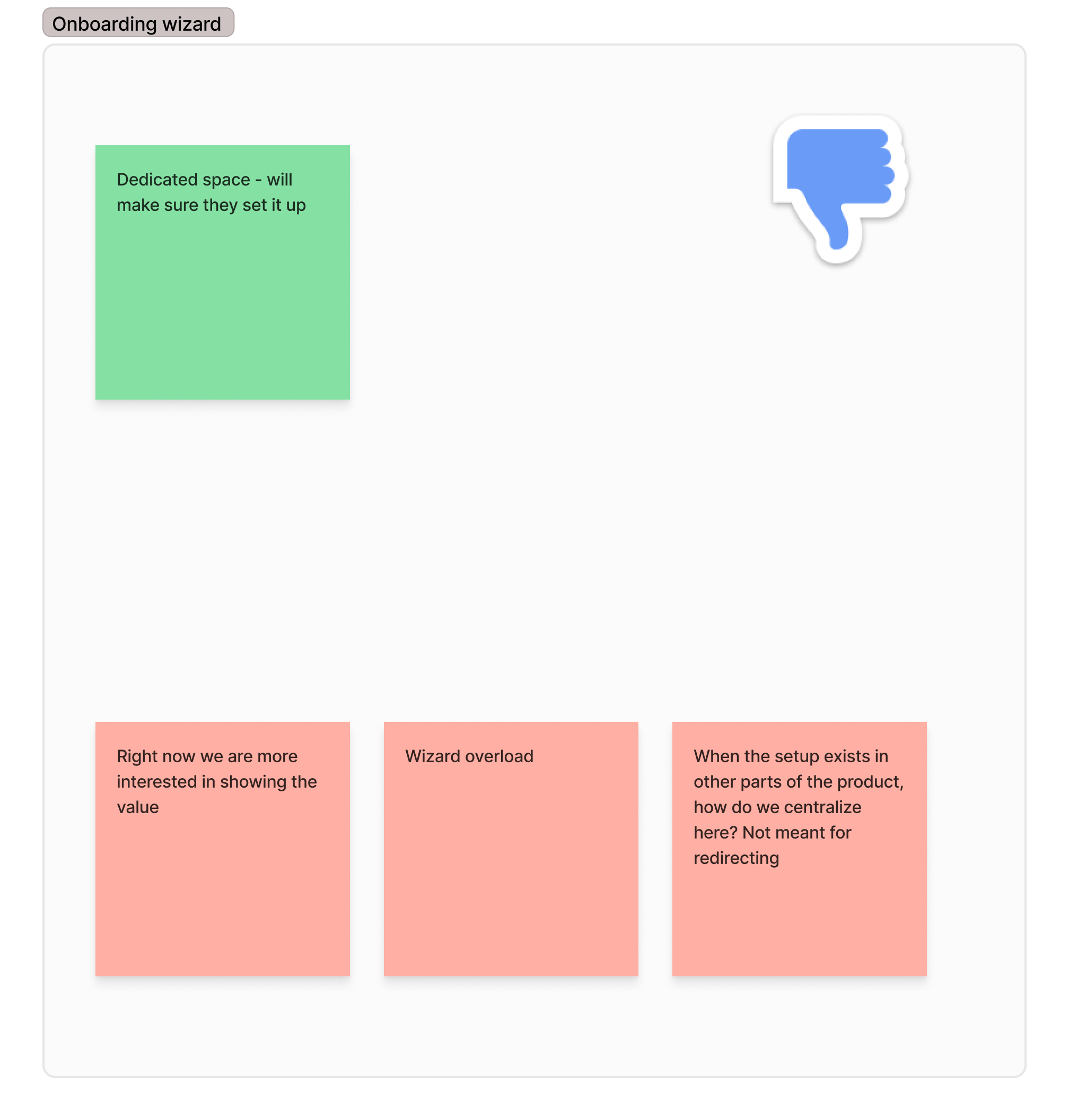
Based on the above analysis, I explored the demo mode and guided tour further, and landed on the demo mode as it fulfilled our design goal of showing the customer a quick overview better, and was more scalable to other integrations in the future if needed.
Creating a compelling demo narrative
A key component to the demo mode pattern performing well, based on the Growth team experiments, was crafting a compelling narrative. A customer new to the product, needed concrete examples of how it would help their business, all crafted into a cohesive story. The content was key here, and I used a story of an e-commerce shop owner selling computer accessories, and incrementally showing how the app can supercharge their business.

Imagine you own an e-commerce store selling computer accessories. With the Shopify app, it’s easy to track your orders in their pipeline right from your orders index page. You can also view customer details, created date, stage, total price, line items and more.
Do you need to re-engage customers who haven’t placed an order in a while? Or welcome a new customer? In just one click, set up automated email campaigns with our out of the box email templates for customer re-engagement, abandoned cart, new customer welcome and more.

With the power of Shopify data in HubSpot, you can add personalized product recommendations to make your email even more engaging.
Bring abandoned cart information into your email to nudge your customers to complete their transactions.

What are the trends in the sale of computer accessories? Is your store performing well or does it need attention? Answer these questions and more by easily setting up an e-commerce dashboard with just a single click by going to Create dashboard and choosing the Ecommerce template.

This dashboard comes with 7 default reports for tracking customer orders and engagement.
Discoverability of the onboarding flow
Another important design decision was the entry point for the onboarding flow and how it would be discovered.
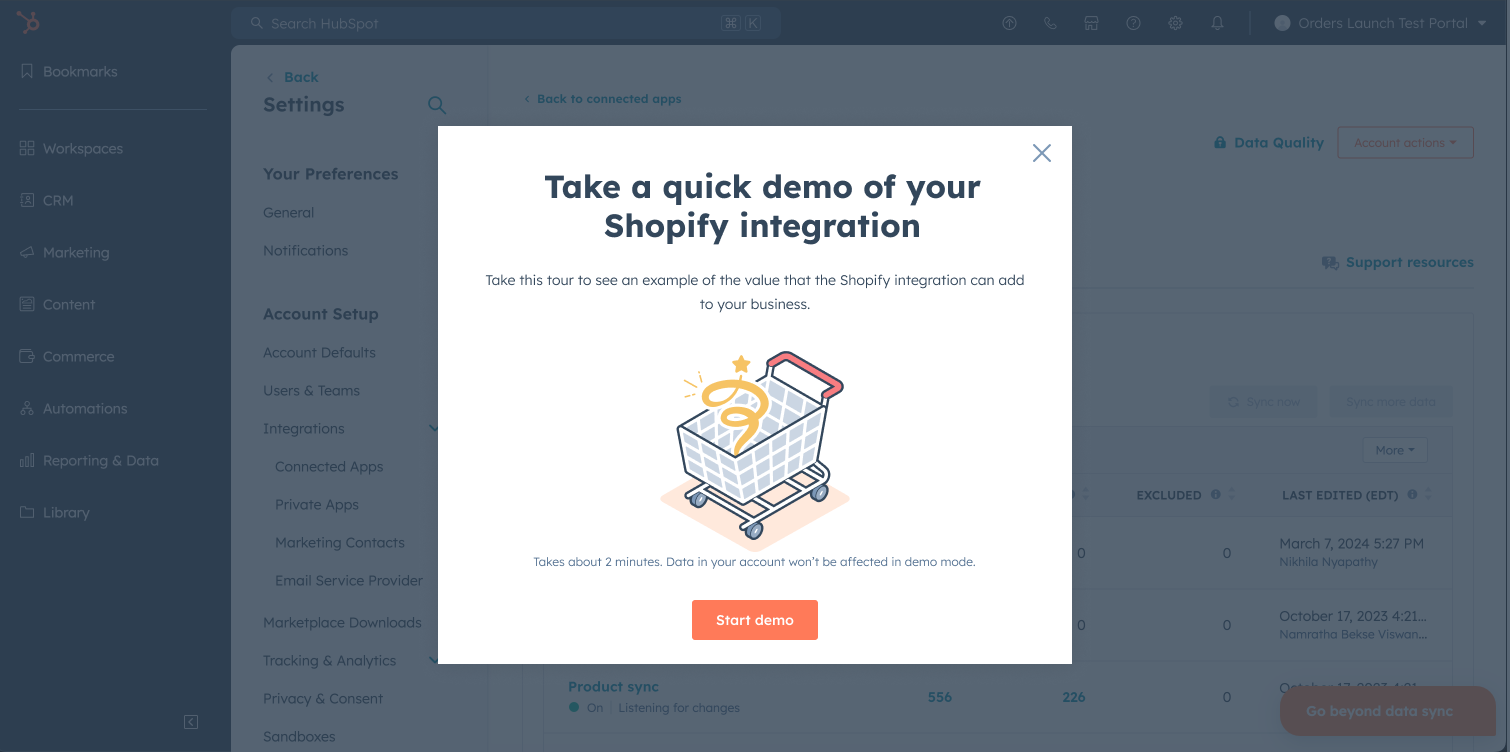
Based on the pattern documentation, I initially had an intro modal that would show up upon install when the user is redirected to the settings page. However, this would disrupt the flow of launching the user into the data syncing wizard upon install, which was a crucial flow that we could not risk disrupting.
I then explored having different launch points from the settings page with varying visual treatments.
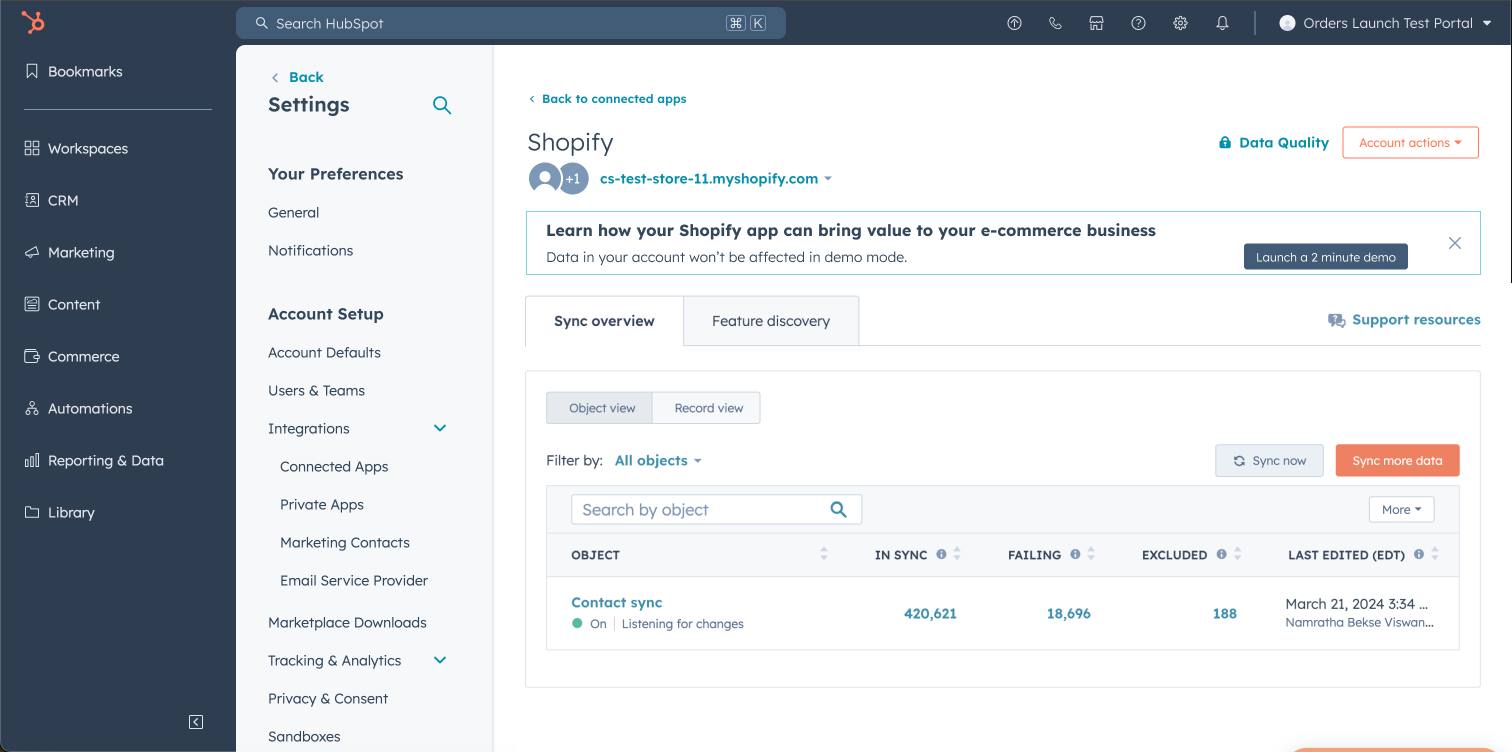
An alert banner with a launch CTA
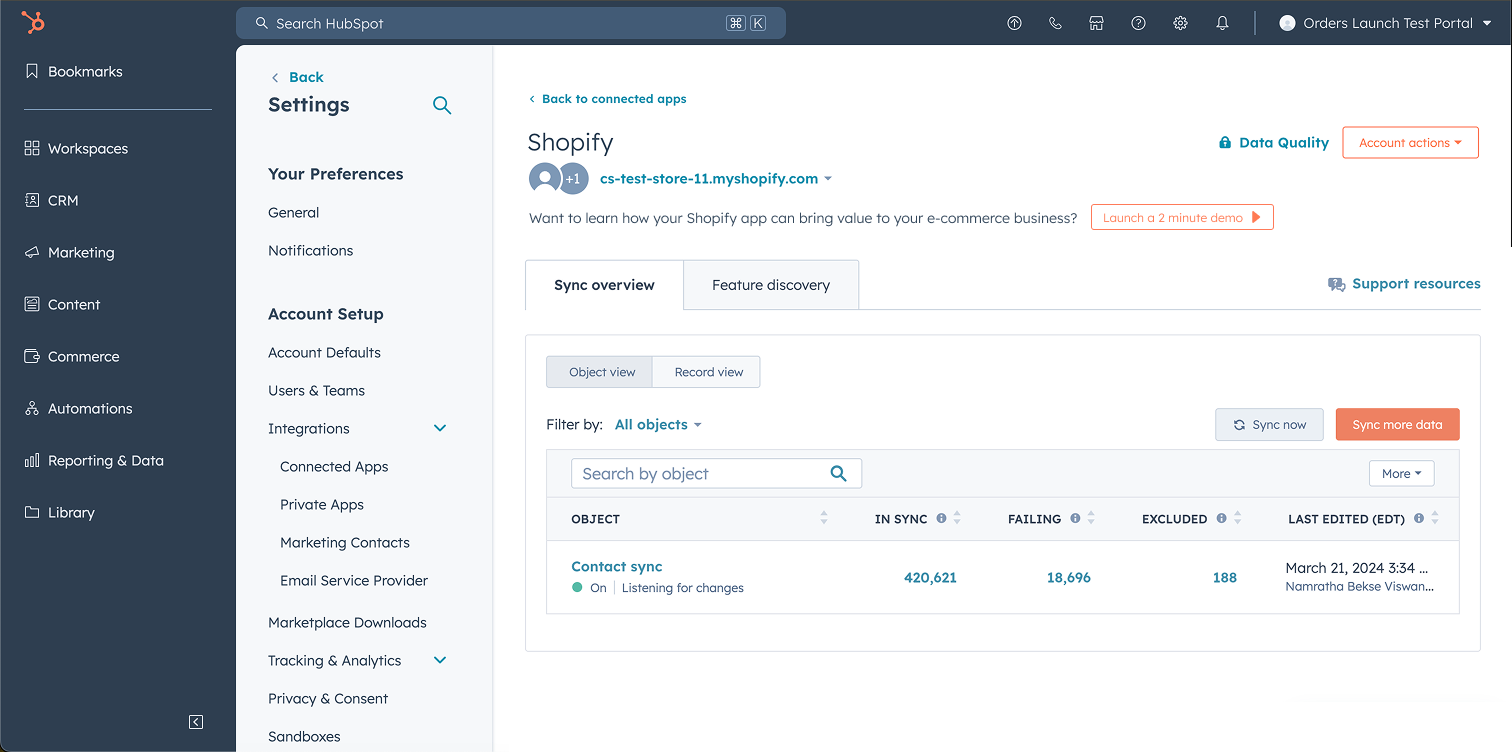
Secondary button callout in the header of the settings page
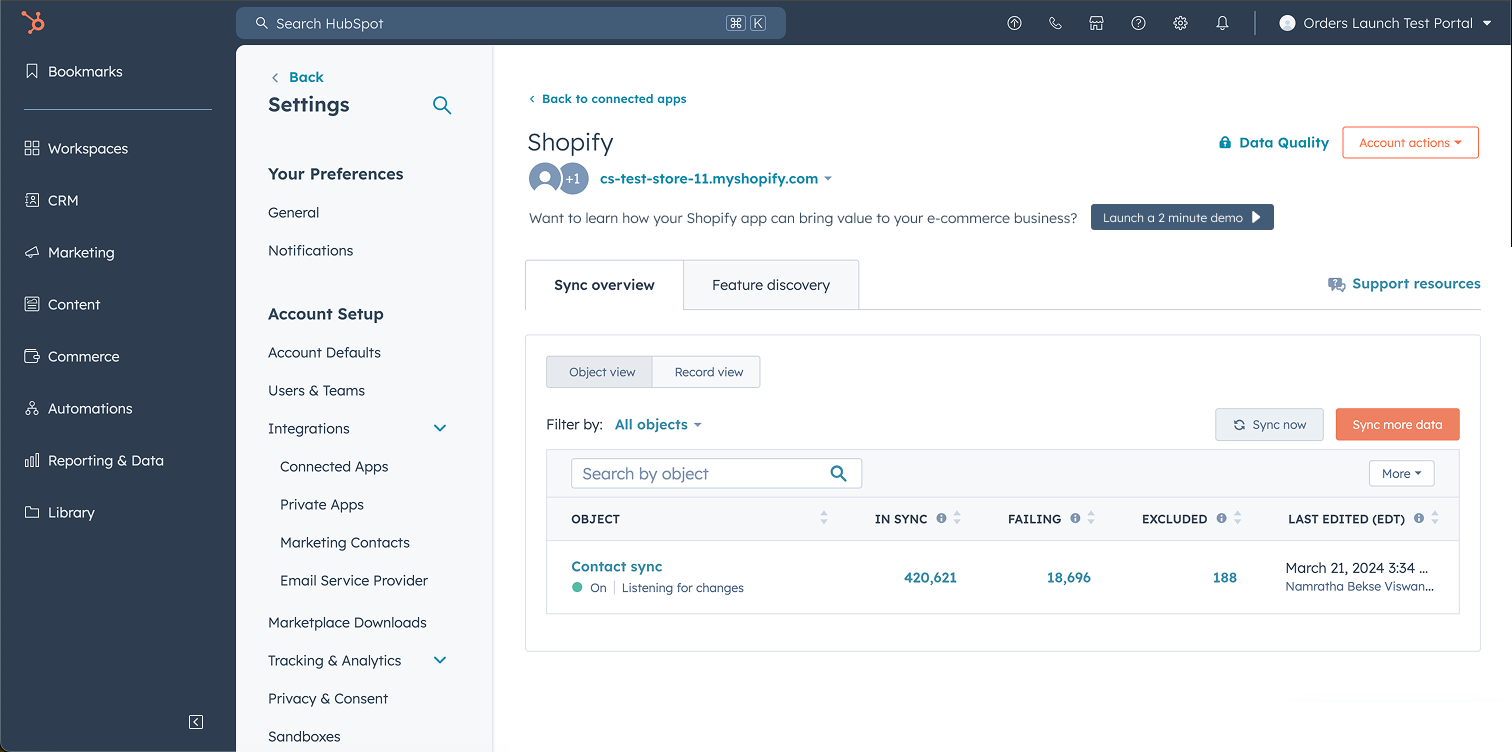
Tertiary button callout in the header of the settings page
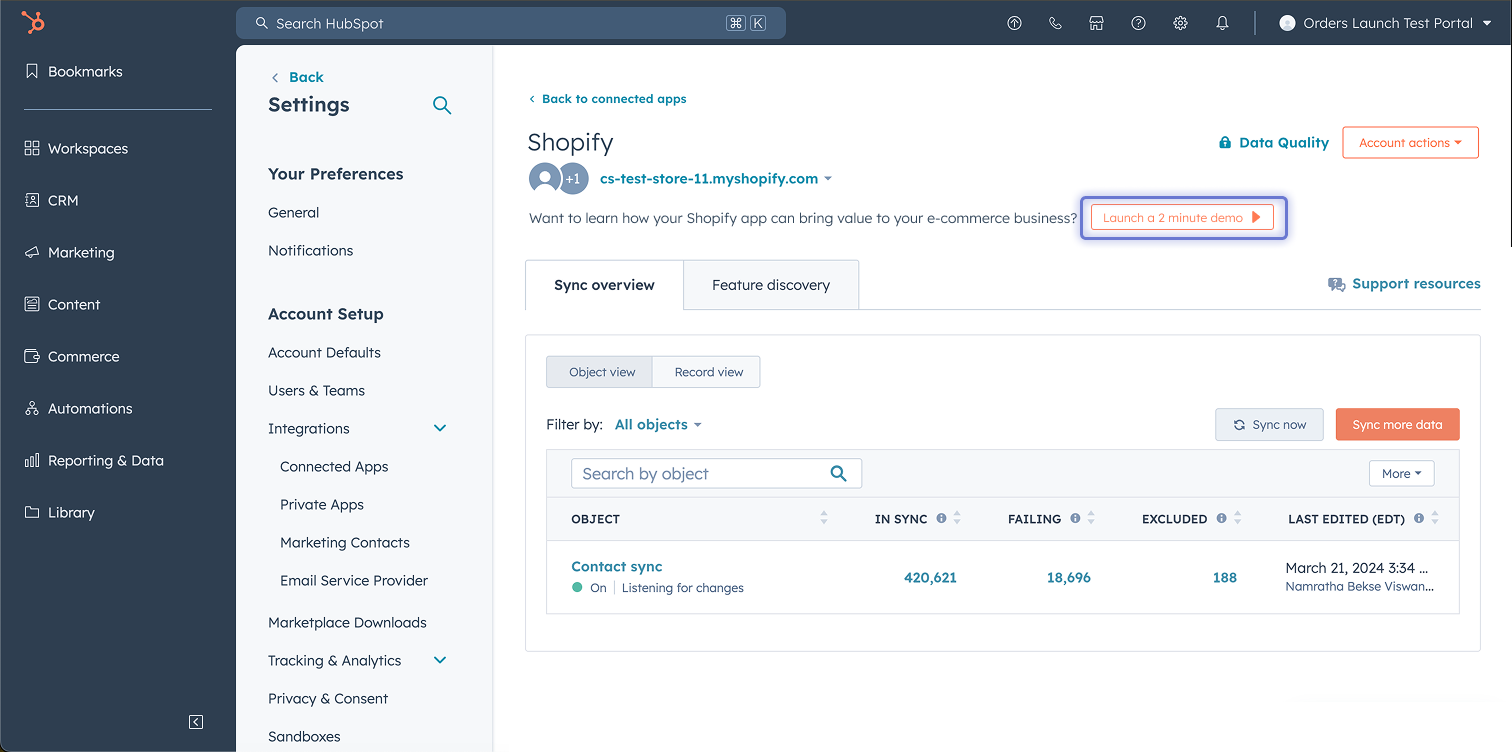
Button callout with pulser in the header of the settings page
After presenting the options to the team, we aligned on the secondary button callout in the settings page header as it was the cleanest option, eye catching enough to compel users to click but non intrusive for the data syncing flow.
Below is the proposed flow for the Shopify demo mode. I led weekly discussions with the engineering team and iterated quickly with them to evolve and finalize these designs. On every page, the focus was highlighting only the elements that were important, and making sure the story told through the demo mode progressed in an intuitive way, starting from where the Shopify data was going to (orders), to deep diving into one engagement email use case, and finally finishing up with an easy way to get started with the analytics. The aim was not to have every feature of the integration, but to help users get started.
CSAT survey
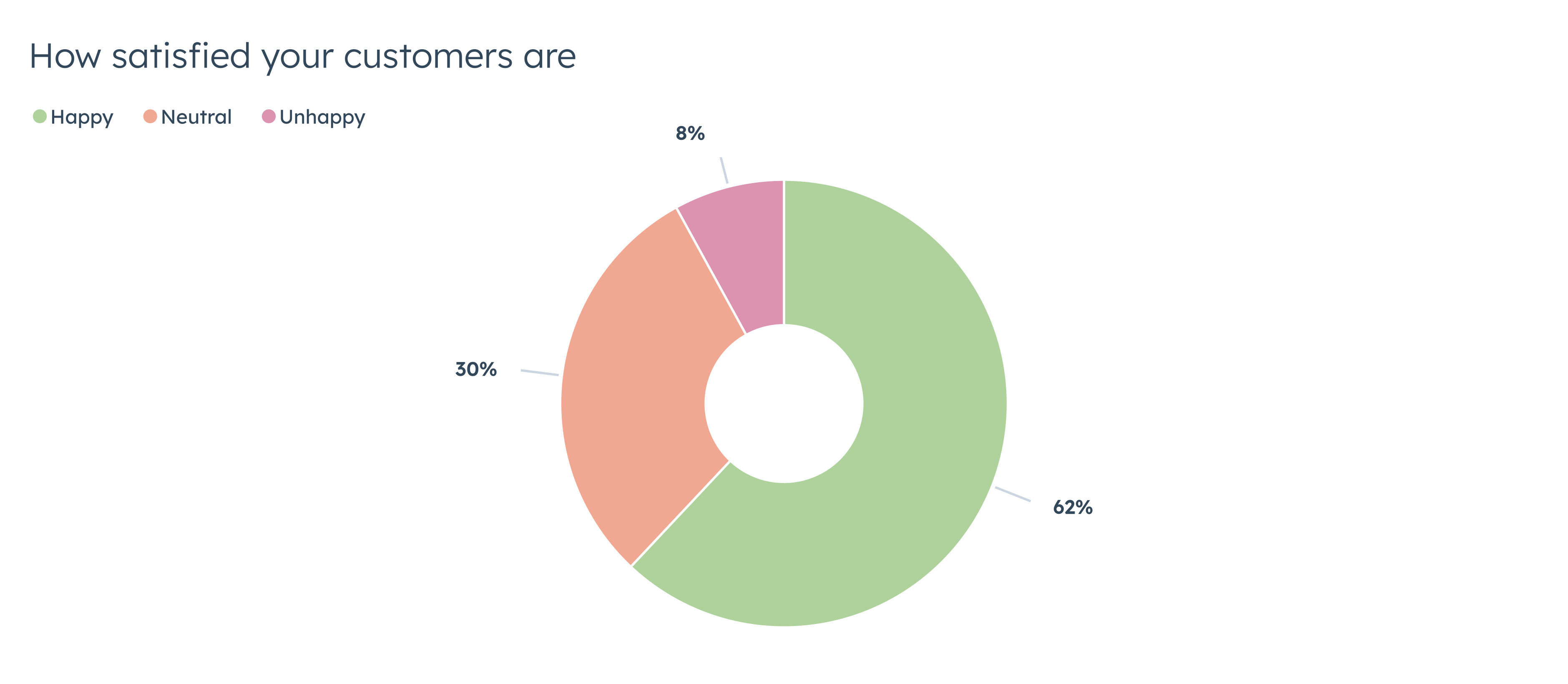
Upon completion of the demo mode, customer satisfaction was tracked with the feedback survey (happy / neutral / unhappy with an optional open text field) to assess how customers felt about the demo mode. Users appreciated the clarity and brevity of the demo, frequently labeling it as “short and sweet.” On the flip side, there was a desire for more comprehensive guidance on setting up email flows and mapping previous deals to new systems, and desiring more depth of onboarding details provided. Users showed interest in additional resources, such as video tutorials or interactive elements to enhance understanding. The CSAT scores below are as of Q3 2026.
Analytics
I worked closely with the product analyst to define the success metrics to track for this project.
Early activation data showed demo mode users activating at roughly 6x the rate of non-users, but volumes were too low to be conclusive, so we treated it as a signal to keep monitoring.
was the end to end completion rate for Q3 2026
Stakeholder feedback
This project was well received by the product group leadership and the broader team for its iterative, thoughtful experimental approach - here's a snapshot of some of the feedback received.
.png)
Learnings & next steps

Got a role in mind? Reach out - let's create real customer value together.
